Short Intro
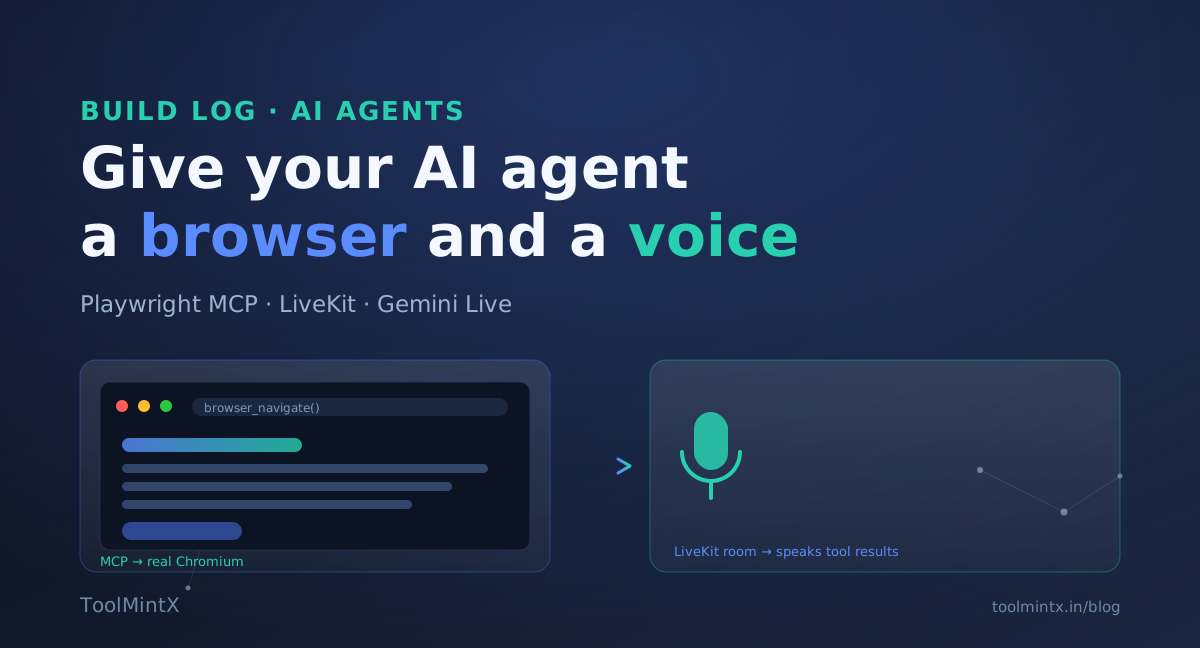
An AI coding agent that only reads and writes files is useful. One that can drive a real browser and hold a live voice conversation is a different kind of tool. It can check your live site the way a user does, and you can talk to it hands-free while it runs real commands for you. This is a build log of doing exactly that on a plain Ubuntu box: wiring the Playwright MCP server into an agent so it controls a real Chromium, then standing up a live voice agent on LiveKit powered by a Gemini Live model, where the voice you talk to actually runs your agent's tools and speaks the result back.
It is also an honest one. Two things bit us that the tutorials skip: a browser version mismatch on older Linux, and a hard platform wall (chat bots cannot place phone calls). Both have clean fixes, and knowing them up front saves an afternoon. If you are going to generate any tokens or secrets along the way, make them properly with the API Key & .env Secret Generator and keep them out of your code. More on that at the end.
Table of Contents
- Start here: get the agent running and on Telegram
- What MCP and LiveKit actually give you
- Part 1: give your agent a real browser with Playwright MCP
- The Ubuntu 20.04 gotcha: browser version pinning
- Part 2: give your agent a live voice on LiveKit
- The wall nobody mentions: bots cannot make phone calls
- Making the voice actually run your agent's tools
- The latency fix: keep the agent warm
- Run it forever, even across reboots: a systemd user service
- Keep your secrets out of everything
- FAQ
- Conclusion
Start here: get the agent running and on Telegram
This build assumes you already have an agent installed and talking to you. If you don't, here is the short path before any of the browser or voice work makes sense.
1. Install the agent. The example throughout uses Hermes Agent, an open-source agent by Nous Research that runs the same core in a terminal, a desktop app, and a messaging gateway. On Linux, macOS, or WSL2 it is one command:
curl -fsSL https://hermes-agent.nousresearch.com/install.sh | bashThat provisions Python, Node.js, and the hermes launcher, then hermes starts a setup wizard where you pick a model provider. If you want the full install walkthrough (local models with Ollama or LM Studio, VRAM planning, Windows and Mac steps), we wrote that up separately: Hermes Agent Setup Guide. The rest of this post applies to any MCP-capable agent, not just this one.
2. Make a Telegram bot. Open Telegram, message @BotFather, send /newbot, and follow the prompts. It hands you a bot token that looks like 123456789:AA.... Treat that token like a password. Store it in your agent's env file, never in code:
# ~/.hermes/.env
TELEGRAM_BOT_TOKEN=123456789:AA-your-token-here
3. Find your chat ID. Here is the part that trips everyone up: to make the bot message you, you need the numeric chat ID of your conversation, and Telegram never shows it in the app. Direct chats, groups, and channels each have their own ID, and groups carry a leading minus (channels a -100 prefix). The quickest way to get it is our Telegram Chat ID Finder: paste the bot token, send your bot a message, and it reads the numeric chat.id straight back. It also clears the common 409 webhook is active conflict in one click if you hit it. Add the number to your env:
# ~/.hermes/.env
TELEGRAM_ALLOWED_USERS=123456789      # your chat ID, so only you can talk to it
4. Start the gateway. With the token and chat ID in place, start the messaging gateway and message your bot. It should reply with full tool access, not just chat. From here on, "send me a link in Telegram" is a real thing your agent can do, which is exactly how the voice-call join link gets to you later in this post.
What MCP and LiveKit actually give you
Two separate capabilities, often confused:
- MCP (Model Context Protocol) is a standard way to hand an AI agent new tools. A Playwright MCP server exposes browser actions — navigate, click, type, snapshot the page — as tools the model can call. Once connected, your agent can open your live website, read the rendered accessibility tree, and click through it. That makes it genuinely useful for QA, scraping your own pages, or verifying a deploy.
- LiveKit is real-time audio/video infrastructure (WebRTC). Paired with a Live speech model, it lets you have a low-latency, interruptible voice conversation with an agent in a room you join from a browser or phone.
The interesting part is joining them: a voice you talk to that isn't a separate chatbot, but a front-end to your real agent, the one with terminal, file, and web tools, and your memory.
Part 1: give your agent a real browser with Playwright MCP
Most agent runtimes read MCP servers from a config file. The server itself is an npm package you run with npx. A minimal MCP server entry looks like this (exact config location depends on your agent):
mcp_servers:
  playwright:
    command: npx
    args:
      - -y
      - "@playwright/mcp@latest"
Prerequisites are just Node.js and npx:
node --version    # v18+ is plenty
npx --version
Then install the browser the server will drive. Playwright ships its own Chromium build rather than using your system Chrome:
npx -y playwright@latest install chromiumRestart your agent so it discovers the new server. Most runtimes register the tools at startup — there is no hot reload — so a restart is mandatory. After that, your agent has tools like browser_navigate, browser_click, browser_snapshot, and browser_type. Ask it to open a page and describe what it sees, and it will drive the real browser to do it.
To sanity-check it end to end, point it at a page and have it read back the structure. A clean run returns the page title and an accessibility snapshot with zero console errors — proof the whole chain (agent → MCP → Chromium → live site) works.
The Ubuntu 20.04 gotcha: browser version pinning
Here is the part the happy-path guides skip. On an older Linux (Ubuntu 20.04), two failures show up in order:
- "Chromium distribution 'chrome' is not found at /opt/google/chrome/chrome." The MCP server defaults to looking for system Google Chrome, which isn't installed. Fix: tell it to use Playwright's bundled Chromium instead, with a
--browser chromiumflag in the server args. - "Browser is not installed; expected executable at .../chromium-XXXX/..." The MCP server pins a specific Chromium build number, and the newest builds have dropped Ubuntu 20.04 support — the auto-installer refuses to fetch them.
The robust fix is to stop fighting the version pin and point the server directly at a Chromium build that does run on your OS, using an explicit executable path:
mcp_servers:
  playwright:
    command: npx
    args:
      - -y
      - "@playwright/mcp@latest"
      - --browser
      - chromium
      - --executable-path
      - /home/youruser/.cache/ms-playwright/chromium-1234/chrome-linux64/chrome
Before trusting it, verify that binary actually launches headless on your box — this catches missing system libraries in one shot:
BIN=~/.cache/ms-playwright/chromium-1234/chrome-linux64/chrome
"$BIN" --headless=new --no-sandbox --dump-dom "data:text/html,<h1>ok</h1>"
If that prints the DOM, the browser is good; restart the agent and the browser tools come alive. On older distros, the safe move is to pin to a browser build you have verified locally rather than whatever the tool wants to download.
Part 2: give your agent a live voice on LiveKit
For live voice you need three things: a LiveKit project (URL + API key + secret), a Live speech model that supports bidirectional streaming, and a small "agent worker" process that joins the room and bridges audio to the model.
The worker is short. In Python, using the LiveKit Agents SDK with a Google Live model, the shape is:
from livekit.agents import Agent, AgentSession, JobContext, WorkerOptions, cli
from livekit.plugins.google.realtime import RealtimeModel

async def entrypoint(ctx: JobContext):
    await ctx.connect()
    session = AgentSession(
        llm=RealtimeModel(
            model="your-gemini-live-model",
            api_key="YOUR_GOOGLE_API_KEY",   # load from env, never hardcode
            voice="Puck",
            instructions="You are a warm, quick voice assistant.",
        ),
    )
    await session.start(agent=Agent(instructions="..."), room=ctx.room)

if __name__ == "__main__":
    cli.run_app(WorkerOptions(entrypoint_fnc=entrypoint))
Install the SDK in its own virtual environment and run the worker:
python -m venv .venv && . .venv/bin/activate
pip install "livekit-agents[google]" livekit-api python-dotenv
python agent.py dev
When it prints registered worker, it is connected to your LiveKit project and waiting. You join the room from a hosted LiveKit web client using an access token your code signs with your API key and secret. Talk, and the model talks back — live and interruptible.
The wall nobody mentions: bots cannot make phone calls
If your goal was "call my chat bot and talk to it," stop here and read this: chat platform bot APIs cannot place or receive phone calls. On Telegram, for example, calling is part of the user (client) API and is explicitly restricted to real user accounts — a bot account physically cannot ring you or pick up. No amount of code changes that; it is a platform boundary, not a missing feature.
So the live call happens in a LiveKit room, not through the chat app's call button. The practical pattern that works: your agent generates a room join link and sends it to you in chat; you tap it and the call opens in the browser. You still start from chat, the audio just runs over WebRTC. Naming this early prevents a lot of wasted effort chasing something the platform will never allow.
Making the voice actually run your agent's tools
A plain voice bot is just conversation. The upgrade — and the whole point — is making the voice a front-end to your real agent, so speaking a task actually runs terminal/file/web tools and speaks back the result.
The mechanism is a function tool on the voice agent. You give the Live model one tool, say ask_agent, and instruct it: whenever the caller wants something done, call this tool with their request. The tool implementation forwards the text to your real agent (its CLI or an API), gets the answer, and returns it to be spoken:
from livekit.agents import function_tool, RunContext

class VoiceAgent(Agent):
    @function_tool()
    async def ask_agent(self, ctx: RunContext, request: str) -> str:
        """Run a real task through the full agent (terminal, files, web, memory)."""
        answer = await run_my_real_agent(request)   # your CLI / API call
        await ctx.session.say(answer)               # speak the result
        return answer
Two model-specific traps we hit, worth checking for your model:
- Some Live models report
supports_say = False, which means the session cannot synthesize arbitrary text through the realtime model. The fix is to attach a separate TTS to the session sosay()has a voice to use. - Some Live models don't support a server-side "greet on connect" call. Let the model greet naturally on the first user audio instead of forcing an opening line.
Once wired, the flow is: you speak, the model calls ask_agent, your real agent runs the tools, and the answer is spoken back. Without that bridge you have a talking toy; with it you have a voice you can actually hand work to.
The latency fix: keep the agent warm
The first working version had a real problem: every spoken task took ~35 seconds. The culprit wasn't the tools — it was boot cost. Spawning a fresh agent process per request paid ~9 seconds of startup every single time, and a heavyweight model added the rest. On a live call, nobody waits 35 seconds; they repeat themselves, which cancels the in-flight reply, and the call falls apart.
Two fixes, together:
- Keep one agent process warm. Instead of launching the agent per request, run a small daemon that boots the agent once and answers over a local socket. The per-turn boot cost disappears.
- Use a fast model for the voice path. A lightweight/"haiku"- or "flash"-class model answers tool questions in a few seconds instead of tens of seconds. You can keep your heavy model for deep work and route only the voice calls to the fast one.
After both, warm turns dropped to ~6–7 seconds, which is the model-and-tool time only, with no boot tax on top. Still not instant, because real work is happening, but usable in conversation. Two things bought that back: keeping the expensive process resident instead of booting it per turn, and picking a model sized to the task rather than the biggest one you own.
Run it forever, even across reboots: a systemd user service
A worker you started in a terminal dies when the terminal does. To make the voice agent durable, so it survives logout and reboot and restarts on crash, wrap it in a systemd user service. No root needed:
# ~/.config/systemd/user/voice-agent.service
[Unit]
Description=LiveKit voice agent
After=network-online.target
Wants=network-online.target

[Service]
Type=simple
WorkingDirectory=/home/youruser/voice-agent
ExecStart=/home/youruser/voice-agent/.venv/bin/python agent.py start
Restart=always
RestartSec=5

[Install]
WantedBy=default.target
Enable lingering (so it runs without an active login), then enable and start it:
loginctl enable-linger "$USER"
systemctl --user daemon-reload
systemctl --user enable --now voice-agent.service
systemctl --user status voice-agent.service
Two commands there do the reboot-survival work, and it is worth knowing which does what:
loginctl enable-linger "$USER"lets your user's services keep running (and start) even when you are not logged in. Without it, user services stop the moment your session ends and do not come back until you log in again. This is the piece most people miss, which is why their agent silently dies after a reboot.systemctl --user enablemarks the service to start automatically on boot. Paired withRestart=alwaysin the unit, that gives you the full guarantee: the machine reboots, the agent starts on its own, and if it ever crashes, systemd brings it back within seconds. No terminal, no login, no manual step.
Confirm both are set with loginctl show-user "$USER" | grep Linger (expect Linger=yes) and systemctl --user is-enabled voice-agent.service (expect enabled). Watch its logs live with journalctl --user -u voice-agent.service -f. The same pattern works for the warm agent daemon: run it as a second user service so both come back on their own after a reboot.
Keep your secrets out of everything
This build touches several credentials: a model API key, plus the LiveKit API key and secret. Treat all of them as radioactive.
- Never hardcode them in source or paste them into a chat, an issue, or a commit. Load them from environment variables or a local, git-ignored env file.
- Never commit env files. Confirm your
.gitignorecovers.env*, and double-check before every push. - Generate strong values properly. For any token you control, like a webhook secret, a room password, or a service token, create it with the API Key & .env Secret Generator rather than typing something guessable.
- Rotate anything that leaked. If a key ever landed somewhere it shouldn't, whether a log, a screenshot, or a message, revoke and reissue it. Assume exposure is permanent.
None of the config snippets above contain a real key on purpose; every value is a placeholder like YOUR_GOOGLE_API_KEY. Keep it that way in your own repo.
FAQ
Do I need system Chrome for Playwright MCP?
No. Playwright ships its own Chromium via playwright install chromium. On mainstream OSes it just works; on older Linux you may need to pass --browser chromium and an explicit --executable-path to a build that runs on your kernel, as shown above.
Why can't I just call my Telegram/Discord bot and talk to it?
Because bot APIs don't expose calling — it belongs to the real-user client API and is off-limits to bot accounts. The working pattern is a LiveKit room: your agent sends you a join link in chat, and the live call happens over WebRTC in the browser.
Why was my voice agent so slow, and how do I fix it?
Almost always per-request startup cost. Keep one agent process warm and answer over a socket instead of spawning a new process each turn, and route voice to a fast model. That took our turns from ~35s to ~6–7s.
Can the voice actually run commands, or just chat?
It can run whatever your real agent can — if you bridge it. Give the Live model a single function tool that forwards the request to your real agent and speaks back the answer. Without that bridge, a voice model only talks.
Is any of this safe to run as a background service?
Yes, with care. Use a systemd user service (no root), keep secrets in an environment file the service reads, and never expose the agent's tools to untrusted callers. Anyone who can join your voice room can run your agent's tools, so guard the join link.
How do I get my Telegram chat ID for the bot?
Telegram never shows the numeric chat ID in the app, and your bot needs it to message you. Paste your BotFather token into the Telegram Chat ID Finder, send your bot a message, and it reads the chat.id back for you. It handles direct chats, groups, supergroups (leading minus), and channels (-100 prefix), and clears the 409 webhook is active conflict if polling is blocked.
Will the agent come back on its own after the server reboots?
Yes, if you set two things. loginctl enable-linger "$USER" keeps your user services alive without an active login, and systemctl --user enable marks them to start on boot. With Restart=always in the unit, the machine can reboot and the agent starts itself, no login or manual command needed. Skip the linger step and the service will not come back until you log in, which is the usual reason an agent "dies" after a restart.
Conclusion
Two upgrades turn an AI agent from a text tool into something you can point at the real world: a browser and a voice. Playwright MCP is a few lines of config plus a browser install, with the one caveat that older Linux needs an explicit, verified Chromium path. LiveKit plus a Live model gives you real-time voice, as long as you accept that the call lives in a room rather than a chat app's call button, and that the voice is only as capable as the agent you bridge it to. Keep the agent warm so the conversation stays fast, and wrap everything in a systemd user service so it survives reboots. The rule that outranks all the others: keep every key in an environment variable, and generate the ones you control with the API Key & .env Secret Generator. Build it once and you have an agent that can see your site and take your calls.
Sources
- Model Context Protocol — specification and server catalog
- Playwright — official browser automation and
playwright installdocumentation - LiveKit — Agents framework and Google/Gemini Live plugin documentation
- Google AI for Developers — Live API (bidirectional streaming) overview
- systemd — user services and
loginctl enable-lingerdocumentation