Short Intro
Hermes Agent is Nous Research's open-source, self-improving AI agent. Unlike a plain chatbot, it ships with 70+ built-in skills, edits files, runs terminal commands, browses the web, and — its defining feature — learns across sessions: it creates new skills from experience, refines them as it uses them, and builds a model of how you work over time. It runs as both a command-line tool and a native desktop app on Ubuntu, Windows, and macOS.
The best part for tinkerers: Hermes is provider-agnostic. You can point it at a cloud model, or run it entirely on your own hardware with Ollama or LM Studio — no API keys, no per-token bill, no data leaving your machine. This guide covers the full setup on all three operating systems, both local and cloud. Before installing, we will do two things that save real pain later: size your hardware with the AI VRAM Calculator and scaffold your secrets with the API Key & .env Secret Generator.
Table of Contents
- What Hermes Agent actually is
- Step 0: plan VRAM before you pull a model
- Step 1: install Hermes Agent (Ubuntu, Windows, Mac)
- Step 2: run it locally with Ollama
- Step 2 (alt): run it locally with LM Studio
- Step 3: scaffold your keys and .env
- Local vs cloud: which path to pick
- Make it a messaging bot (optional)
- FAQ
- Conclusion
What Hermes Agent actually is
Hermes Agent is a CLI-first agent (with an optional desktop app, Hermes Desktop) built by Nous Research. The thing that sets it apart from other agent runners is a built-in learning loop: it can write its own skills from what it just did, improve them on later runs, persist knowledge, and search its own past conversations. You get an assistant that genuinely gets more useful the longer you use it, rather than starting cold every session.
A few facts worth knowing before you install:
- It is open source and free. You only pay for model inference — and if you run locally, even that is free.
- It needs at least one model provider configured. That can be a cloud API, Nous Portal, or a local server like Ollama or LM Studio.
- Because it is agentic (it takes actions through tool calls), the model behind it must support tool calling. A chat-only model can talk but cannot edit files or run commands.
- The installer is self-contained: it provisions Python, Node.js, ripgrep, and ffmpeg for you. On Linux/macOS the only prerequisite is Git.
Step 0: plan VRAM before you pull a model
If you intend to run Hermes on local models, the single most common mistake is downloading a model that does not fit your hardware. The download size is not the memory you need at runtime — you also pay for the KV cache (which grows with context length), activations, and any concurrent load. Hermes also needs a large context window (more on that below), which makes the KV cache bigger than usual.
Open the AI VRAM Calculator and plan it in your browser first:
- Pick the model. The recommended local model for Hermes is
gemma4:31bbecause it has reliable tool calling. The calculator has an exact Gemma 4 31B preset — select it. For a lighter setup, the Gemma 3 / smaller presets stand in well forgemma2:9b-class models. - Set quantization to Q4_K_M. That is what Ollama pulls by default. Q8 and BF16 cost far more memory; the calculator shows the jump clearly.
- Set a realistic context length. Hermes needs at least 64K tokens for agentic work, so set the calculator to ~64K rather than the tiny default — and watch the KV cache line climb.
- Leave concurrent users at 1 for a personal agent.
- Read the breakdown of weights, KV cache, and activations, and compare it to your GPU.Quick sanity ranges: a 31B model at Q4 wants roughly 20–24 GB of RAM/VRAM, a 9B model around 8 GB, and a 3B model around 4 GB. Hermes' own docs note that CPU-only works too — a 9B model on a modern 8-core CPU gives ~10 tokens/sec — but a GPU makes the experience far smoother. Use the calculator with your exact numbers before downloading anything.
Step 1: install Hermes Agent (Ubuntu, Windows, Mac)
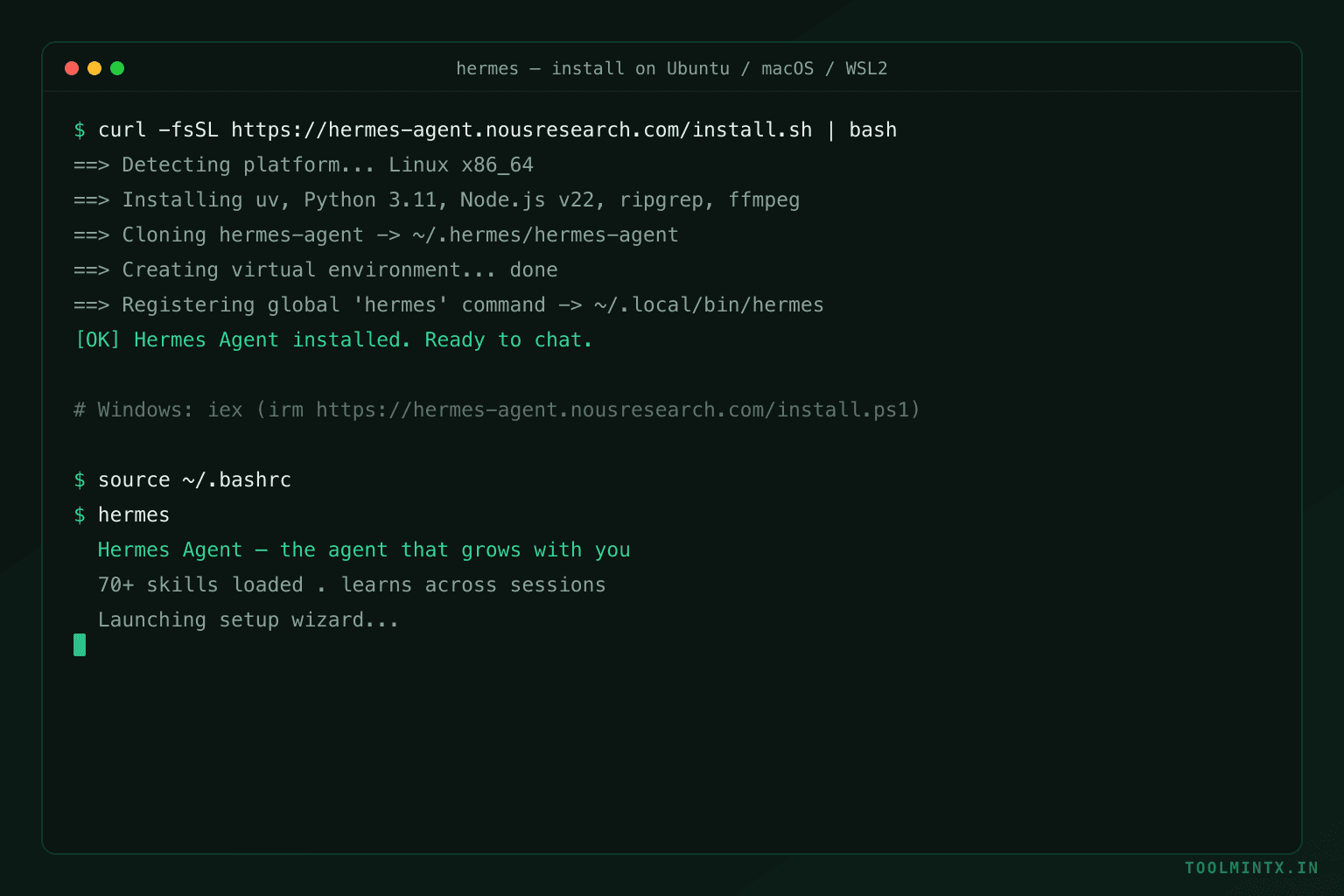
The fastest install is one command. The installer clones the repo, builds a virtual environment, installs all dependencies, and registers a global hermes command.
Ubuntu / Linux / macOS / WSL2
curl -fsSL https://hermes-agent.nousresearch.com/install.sh | bashWindows (native, PowerShell)
iex (irm https://hermes-agent.nousresearch.com/install.ps1)Prefer a GUI? On macOS and Windows you can download the Hermes Desktop installer from the official site instead — it sets up both the desktop app and the hermes command-line tool. After a CLI-only install you can still add the desktop app later with hermes desktop.
The only prerequisite on non-Windows platforms is Git (git --version). Everything else — Python 3.11, Node.js v22, ripgrep, ffmpeg — is installed for you. Files land under ~/.hermes/, and the launcher at ~/.local/bin/hermes.
When it finishes, reload your shell and start it:
source ~/.bashrc   # or: source ~/.zshrc
hermes             # launches the setup wizard, then starts chatting
Useful commands you will come back to:
hermes setup     # full configuration wizard
hermes model     # choose LLM provider and model
hermes tools     # enable/disable tools
hermes doctor    # diagnose a broken install
hermes update    # update to the latest version
Step 2: run it locally with Ollama
This is the zero-cost, fully private path. Hermes talks to Ollama as a custom OpenAI-compatible endpoint.
Install Ollama (Linux shown; on Windows/macOS use the installer from ollama.com):
curl -fsSL https://ollama.com/install.sh | sh
ollama --version
curl http://localhost:11434/api/tags   # should return {"models":[]}
Pull a tool-capable model. For full agentic work, gemma4:31b is currently the best local option with reliable tool calling:
ollama pull gemma4:31bTool calling matters: Hermes edits files, runs commands, and browses the web through tool calls. Conversational-only models (like
gemma2:9borllama3.2:3b) can chat but cannot take actions. Pick a tool-calling model for the real experience.
Fix the context window. Ollama defaults to a 2,048-token context, but Hermes needs at least 64,000 for agentic work. Bake a larger context into the model once:
cat > /tmp/Modelfile << 'EOF'
FROM gemma4:31b
PARAMETER num_ctx 64000
EOF
ollama create gemma4-64k -f /tmp/Modelfile
Point Hermes at it. Run hermes setup, choose Custom Endpoint, and enter:
- Base URL:
http://localhost:11434/v1 - API Key: leave empty or type
no-key(Ollama does not need one) - Model:
gemma4-64k(the context-extended model you just created)
Or edit ~/.hermes/config.yaml directly:
model:
  default: "gemma4-64k"
provider: "custom"
base_url: "http://localhost:11434/v1"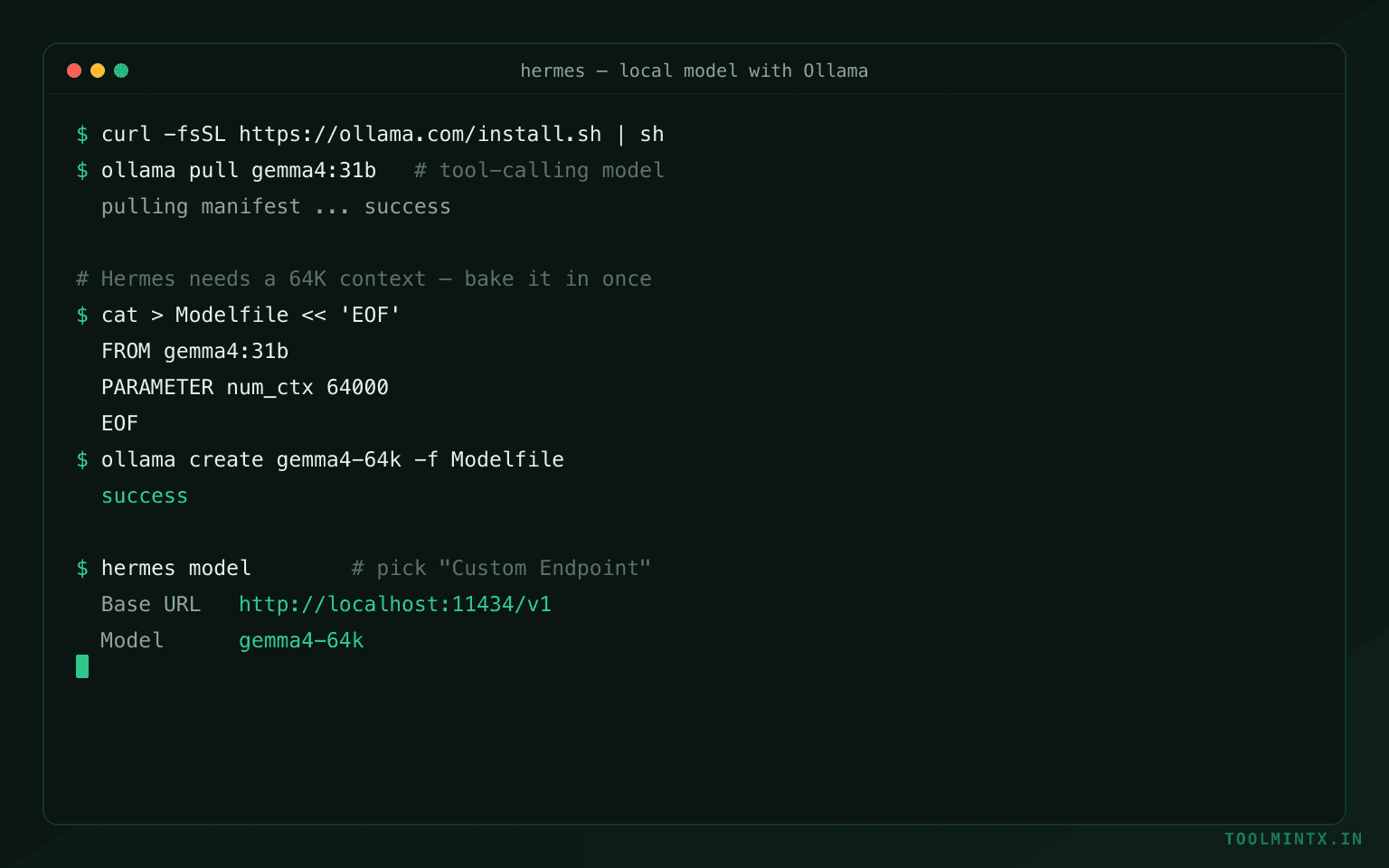
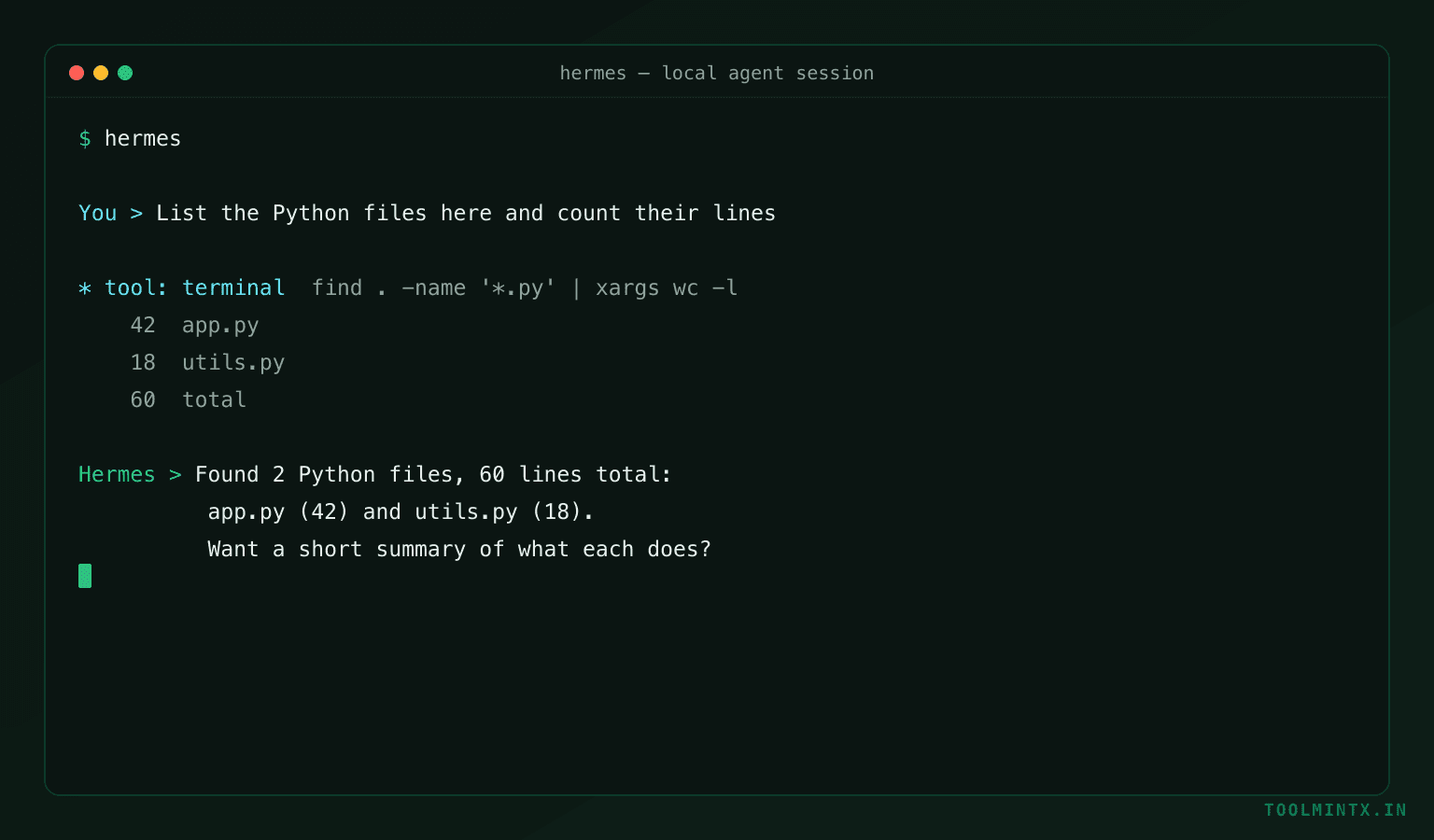
Then just run hermes. You now have a fully local agent that can list files, read and summarize a README, or write and run a script — with no cloud calls. Switch models mid-session with /model gemma2:9b. On a CPU-only box, widen the timeout so slow responses do not get cut off — add HERMES_API_TIMEOUT=1800 to ~/.hermes/.env.
Step 2 (alt): run it locally with LM Studio
Prefer a graphical model manager? LM Studio works on Ubuntu, Windows, and macOS and is a first-class Hermes provider.
- Install LM Studio and use its Discover tab to download a tool-capable model that fits the VRAM number from Step 0.
- Open the Local Server tab and start the server (it exposes an OpenAI-compatible endpoint on port
1234). - In Hermes, run
hermes modeland choose LM Studio from the provider list. An API key is optional for local use (LM_API_KEYonly if you set one).
LM Studio's advantage is the visual model browser and per-model settings; the trade-off is a heavier desktop app than Ollama's lightweight server.
Step 3: scaffold your keys and .env
Hermes reads provider API keys and gateway tokens from ~/.hermes/.env. Local models need no key, but the moment you add a cloud provider, a messaging bot, or a Hugging Face download, you need real secrets — and you should generate them properly, not reuse a weak string. Use the API Key & .env Secret Generator to create strong values locally, then drop them into ~/.hermes/.env:
# ~/.hermes/.env — examples; add only what you actually use
OPENROUTER_API_KEY=sk-or-...            # OpenRouter provider
DEEPSEEK_API_KEY=...                    # DeepSeek
GOOGLE_API_KEY=...                      # Google / Gemini
HF_TOKEN=...                            # Hugging Face model downloads
HERMES_API_TIMEOUT=1800                 # widen timeout for slow local models
The generator is handy for the values you control — webhook tokens, a strong secret for any service you wrap around Hermes, or rotating a leaked key. Keep this file private; never commit .env to a repo.
Local vs cloud: which path to pick
Keep the decision simple.
Run locally (Ollama / LM Studio) when you want privacy, zero per-token cost, and offline capability, and you have the hardware from Step 0. The trade-off is that local open models are not quite as capable as frontier cloud models on the hardest tasks.
Use cloud when you want top-tier model quality without owning a GPU, or you are just getting started. Hermes supports a long list of providers — OpenRouter, Anthropic, OpenAI, Google Gemini, DeepSeek, NVIDIA, and many more — each configured with one key in ~/.hermes/.env or an OAuth login via hermes model.
Fastest path of all: Nous Portal. One subscription and a single command wire up 300+ models plus the Tool Gateway (web search, image generation, TTS, cloud browser):
hermes setup --portalA reasonable workflow is to start on Portal or a cloud key to learn the agent, then move heavy or private workloads to a local Ollama model once you know what you need. Because Hermes abstracts the provider, switching is just hermes model.
Make it a messaging bot (optional)
Once Hermes runs in your terminal, you can expose it as a Telegram or Discord bot that still runs entirely on your hardware. Create a bot token (for Telegram, via @BotFather), add it under a platforms block in ~/.hermes/config.yaml, and start the gateway with hermes gateway setup. Store that bot token in ~/.hermes/.env rather than hardcoding it — again, the .env Secret Generator is the safe way to handle anything sensitive.
FAQ
Is Hermes Agent free?
The agent itself is open source and free. You only pay for model inference — and if you run it locally with Ollama or LM Studio, there is no inference cost at all, just your hardware and electricity.
Which local model should I use?
For full agentic work (file edits, commands, browsing), use a tool-calling model. Hermes' docs currently recommend gemma4:31b as the best local option. Lighter models like gemma2:9b or llama3.2:3b are faster but chat-only — they cannot take actions.
How much VRAM do I need?
Roughly 20–24 GB for a 31B model at Q4, ~8 GB for a 9B, and ~4 GB for a 3B — but Hermes needs a 64K+ context, which raises the KV cache. Run the AI VRAM Calculator with the Gemma 4 31B preset, Q4_K_M, and a 64K context for an exact figure. CPU-only also works; it is just slower.
Why does Hermes feel limited or cannot use tools?
Two usual causes: the model does not support tool calling (switch to gemma4:31b), or the context window is too small (Ollama's 2,048 default). Create a context-extended model with num_ctx 64000 as shown in Step 2.
Can I switch between local and cloud later?
Yes. Run hermes model at any time to change provider or model — cloud key, Nous Portal, Ollama, or LM Studio. Your agent, skills, and history under ~/.hermes/ stay the same.
Conclusion
Hermes Agent is one of the most interesting open agents to run yourself precisely because it is not locked to one model or one machine: install it once on Ubuntu, Windows, or Mac, then point it wherever you like. The setup that avoids headaches is the boring, ordered one — size your hardware with the AI VRAM Calculator before you pull a model, install Hermes with the one-line installer, wire up a tool-calling local model through Ollama or LM Studio (with the 64K context fix), and keep every secret in ~/.hermes/.env using the .env Secret Generator. Start on cloud or Nous Portal if you want the easiest on-ramp, and move local once you know your workload. Either way, the same agent — and everything it has learned about your work — comes with you.
Sources
- Hermes Agent — official documentation: Installation and Getting Started (hermes-agent.nousresearch.com)
- Hermes Agent — "Run Hermes Locally with Ollama" guide
- Hermes Agent — AI Providers documentation
- NousResearch/hermes-agent — GitHub repository
- Ollama — model library and integration docs