A signature file can be rejected for being too small. It sounds like a typo, and the first time it happens on a government application form it feels like one.
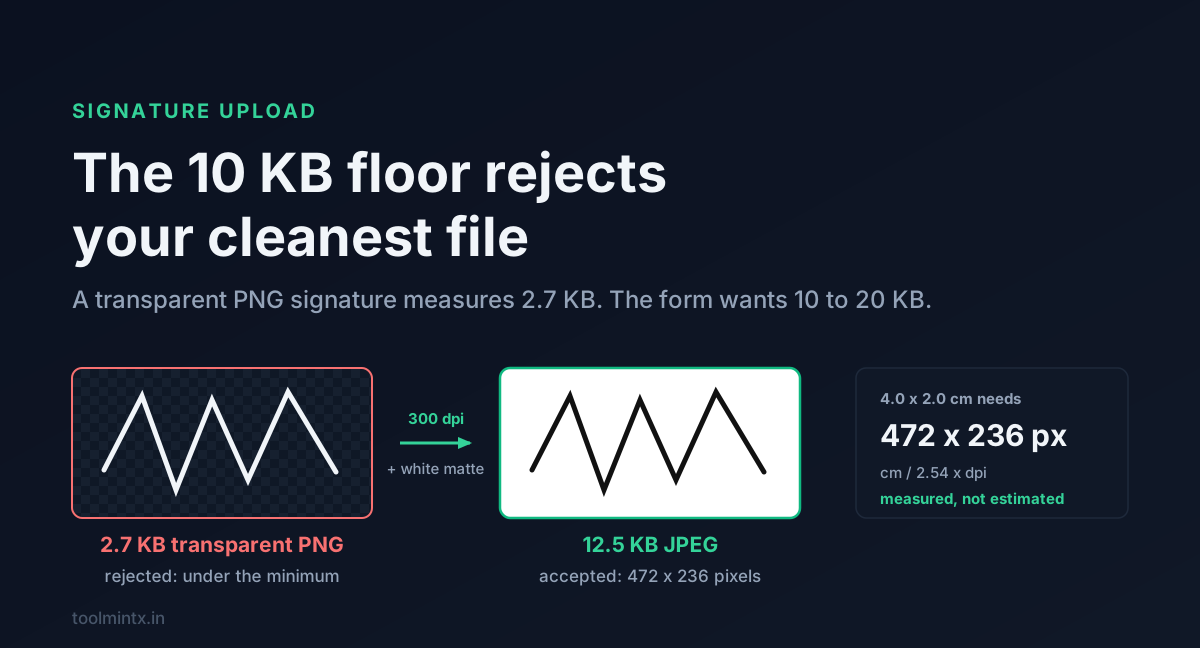
Most Indian exam forms give you a window of 10 KB to 20 KB, and both ends are enforced. A clean transparent PNG of a signature, the kind you get when you lift ink off a photo of paper, comes out around 2.7 KB at the size the form wants. That is a quarter of the minimum, and the upload button will not take it.
Table of contents
- Why forms set a minimum
- Pixels in a 4 by 2 cm signature
- Transparent PNGs
- Measured file sizes at each dpi
- Scans over 20 KB
- Steps that land inside the window
- Where the specs disagree
- FAQ
- Sources
Why forms set a minimum
The 20 KB ceiling is obvious: thousands of applications a day, each with a photo and a signature, and someone has to store and print them.
The 10 KB floor is the part nobody explains. File size is the cheapest available proxy for "is there enough detail here to be readable after printing". A recruitment board cannot inspect every upload, but it can assume that a JPEG under 10 KB at the requested dimensions has too few pixels or was crushed by the encoder. Either way the signature will smear on the admit card.
So the floor is really a detail check expressed as a file size, and that tells you the fix. You do not pad the file. You give it more real detail and let the encoder settle where it settles.
Pixels in a 4 by 2 cm signature
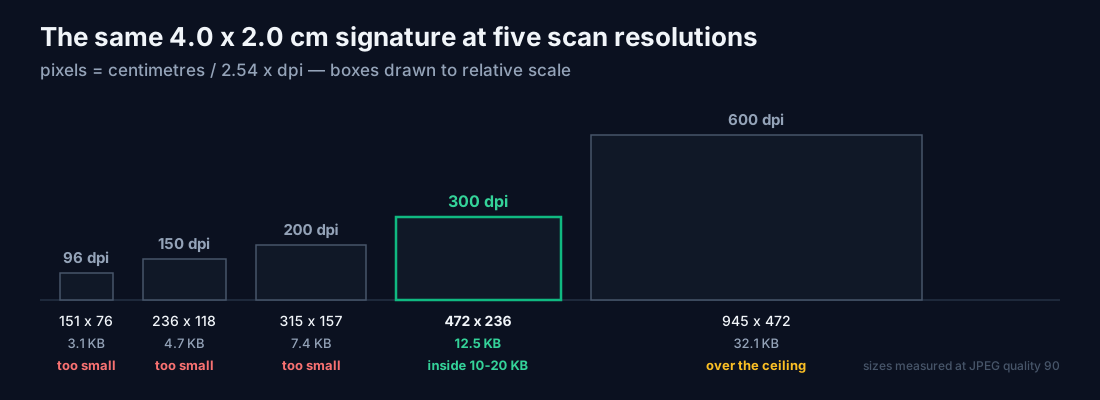
Forms specify signatures in centimetres, while your phone and image editor work in pixels. The bridge is dpi, and it decides whether you land in the window.
| Scan resolution | 4.0 x 2.0 cm becomes | Total pixels |
|---|---|---|
| 96 dpi | 151 x 76 | 11,476 |
| 150 dpi | 236 x 118 | 27,848 |
| 200 dpi | 315 x 157 | 49,455 |
| 300 dpi | 472 x 236 | 111,392 |
| 600 dpi | 945 x 472 | 446,040 |
The formula is pixels = centimetres / 2.54 x dpi. Two centimetres of height is 236 pixels at 300 dpi and 76 at 96 dpi.
Seventy-six pixels of height is where trouble starts. A signature has thin strokes, and once the height drops under about 100 pixels a stroke is one or two pixels wide. JPEG then has almost nothing to encode, the file lands near 3 KB, and the form refuses it.
Transparent PNGs
Lifting a signature off a photo of paper and saving it as a transparent PNG is the right move for most uses. You can drop that PNG onto a contract or letterhead without the paper texture coming along. Our own signature extractor does this in the browser with a threshold slider.
Fed into an exam form, that same PNG goes wrong in two ways.
The first is size. PNG compresses flat areas almost for free, and a transparent background is as flat as it gets. I measured the same 472 x 236 signature both ways: 2.7 KB as a transparent PNG, 12.5 KB as a JPEG at quality 90. Same drawing, same pixels, four and a half times the file. The PNG is the better file and the illegal one.
The second is worse, because the form accepts the file and a human rejects it later.
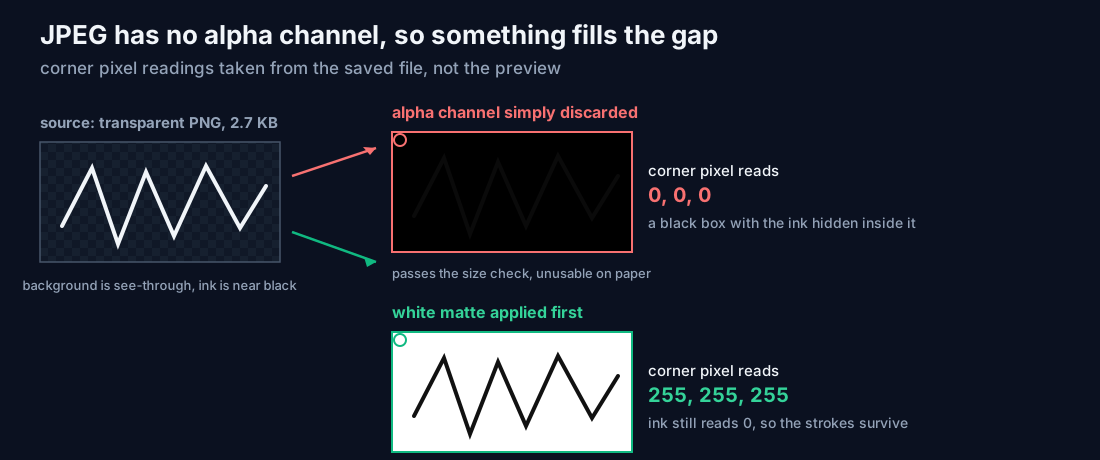
JPEG has no alpha channel, so every see-through pixel has to be filled with something before conversion. Done properly, the empty area becomes white. A naive conversion discards the alpha channel instead, and those pixels fall back to their stored colour underneath, which is zero. I ran both paths on the same file. Flattened onto white, the corner pixel reads 255, 255, 255 and the ink still reads 0. With alpha simply dropped, the corner reads 0, 0, 0, and you have uploaded a black rectangle with an invisible signature inside it.
The matte colour is therefore the one setting to check in any converter. The PNG to JPG converter fills transparent areas with white before encoding and lets you change that colour, so the corner comes out white instead of black.
Measured file sizes at each dpi
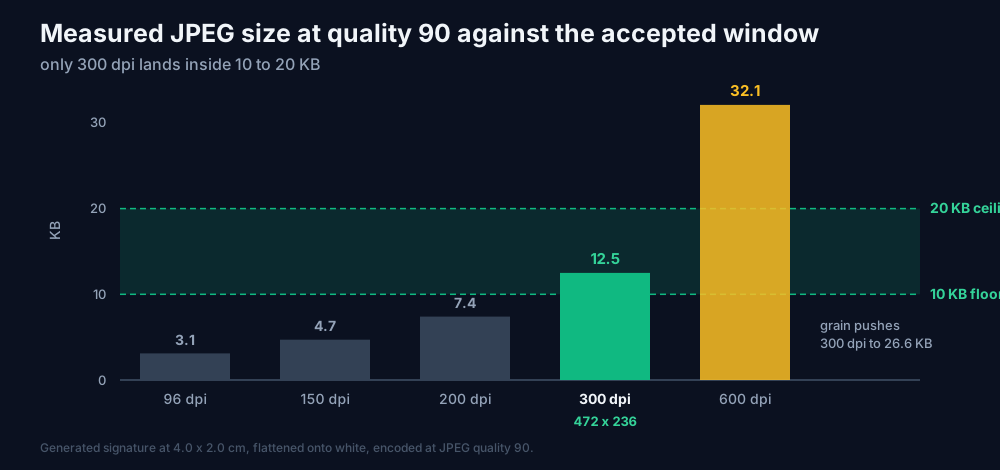
I generated a signature at each resolution, flattened it onto white, and encoded it at several JPEG quality settings. Every figure below was measured.
| 4 x 2 cm at | Pixels | q95 | q90 | q80 | q70 |
|---|---|---|---|---|---|
| 96 dpi | 151 x 76 | 3.8 KB | 3.1 KB | 2.6 KB | 2.3 KB |
| 150 dpi | 236 x 118 | 5.8 KB | 4.7 KB | 3.9 KB | 3.5 KB |
| 200 dpi | 315 x 157 | 9.2 KB | 7.4 KB | 6.0 KB | 5.3 KB |
| 300 dpi | 472 x 236 | 15.4 KB | 12.5 KB | 10.1 KB | 9.0 KB |
| 600 dpi | 945 x 472 | 38.9 KB | 32.1 KB | 26.2 KB | 23.4 KB |
Nothing below 300 dpi reaches 10 KB at any quality setting. At 200 dpi the best you get is 9.2 KB, at quality 95, with no headroom left. At 300 dpi the window is reachable with room to spare: 10.1 KB at quality 80, 12.5 KB at 90, 15.4 KB at 95.
These numbers come from a clean synthetic signature, the friendliest possible input. A photograph of paper carries sensor grain, and grain is expensive to encode. Adding mild noise to the same images moved 300 dpi quality 90 from 12.5 KB to 26.6 KB, straight through the ceiling. Most of that file is grain, not signature.
Scans over 20 KB
The opposite failure is louder and easier to fix. At 600 dpi the clean file is 32.1 KB at quality 90, and the grainy version is 92 KB. Anyone who photographs a signature with a modern phone and uploads it untouched starts several times over the limit, sometimes at a few hundred KB.
The instinct is to drag the quality slider down until the number fits. It works, but it is the wrong lever to pull first. Quality 50 on a 600 dpi scan gets you to 19.7 KB, technically inside the window, with visible blocking on every stroke edge. You would be shipping the artefacts the floor was written to prevent.
Resize first, then compress. Bring the pixel dimensions to what 300 dpi at the requested size needs, which is 472 x 236 for a 4 x 2 cm signature, and the file lands in the window without a punishing quality setting. Pixels beyond that resolution do not survive printing on an admit card anyway.
Steps that land inside the window
This is the order I would use, and each step follows from a number above.
- Sign on unlined white paper in blue or black ink, and fill the space. A small signature photographed from far away gives you fewer real pixels of ink.
- Photograph or scan it in even light, then crop tight to the signature with a thin margin. Cropping turns a photo of a desk into a 4 x 2 cm signature.
- Clean the background. Lifting the ink to a transparent PNG removes paper shadow and grain, the biggest obstacle between you and the 20 KB ceiling.
- Flatten onto white and resize to about 472 x 236 pixels. Confirm the corner of the result is white, not black.
- Save as JPEG at quality 85 to 92 and check the file size. Under 10 KB, go back and use more pixels. Over 20 KB, look for leftover grain before you touch quality.
Step 4 is where most people slip. A converter with a black default matte, or no matte control at all, produces a file that passes every automated check and is unusable on paper. Open the saved JPEG and look at it once before uploading. It takes three seconds.
Where the specs disagree
The 10 KB to 20 KB range and the JPEG requirement are consistent across the SSC exam guidance I could find. The dimensions are not.
Coverage of SSC CGL 2026 gives 4.0 cm wide by 2.0 cm tall in one place and 6.0 cm by 2.0 cm in another. SSC CHSL 2026 guidance says roughly 6.0 x 2.0 cm. SSC GD 2026 guidance says 4 cm x 2 cm. Some boards state pixel dimensions and skip dpi entirely, which is the easier way to read a spec.
I can't tell which of these is authoritative. Read the notice for the exam you are filling, and treat the aggregator articles as a rough guide. The dpi arithmetic stays the same either way: 6 cm at 300 dpi is 709 pixels wide instead of 472, and a wider image at the same resolution gives you more pixels and a slightly larger file, which moves you further from the floor.
Newer SSC cycles also capture the photograph live through the application module instead of accepting an upload. The signature is still an upload, so it is the file you have to get right.
FAQ
Why is my signature rejected for being too small?
The form enforces a minimum as well as a maximum, usually 10 KB. A JPEG under that size at the requested dimensions has too little detail to print cleanly, so file size stands in for a detail check. Scan or resize to 300 dpi and the file clears the floor on its own.
How many pixels is a 4 cm by 2 cm signature?
472 x 236 pixels at 300 dpi, from centimetres divided by 2.54, times dpi. At 150 dpi the same signature is only 236 x 118 pixels, which cannot reach 10 KB as a JPEG at any sensible quality.
Why did my signature turn into a black box after converting to JPG?
The converter dropped the transparent background instead of filling it. JPEG cannot store transparency, so those pixels need a colour first, and without one they resolve to black. Use a converter that applies a white matte, and check the corner of the saved file.
My phone photo is 400 KB. What do I reduce first?
Crop and resize before you touch quality. Bring the image down to roughly 472 x 236 pixels, remove the paper background, then save at quality 85 to 92. Dropping quality on a full resolution photo can hit the target size and still leave visible blocking on the strokes.
Sources
- SSC CGL signature upload rules 2026: JPEG or JPG, 10 KB to 20 KB, dimensions given as 6.0 cm by 2.0 cm, PW.
- SSC CGL photo and signature size 2026: live photo capture through the application module, scanned signature in JPEG at 10 KB to 20 KB, dimensions given as 4.0 cm by 2.0 cm, PW.
- SSC CHSL photo and signature size 2026: signature in JPEG or JPG, 10 KB to 20 KB, about 6.0 cm by 2.0 cm, PW.
- SSC GD signature and photo size 2026: 4 cm by 2 cm with a file size between 10 KB and 20 KB, Testbook, 29 December 2025.
- SSC Selection Post Phase 14 signature upload rules 2026: JPG or JPEG, 10 KB to 20 KB, 6 cm by 2 cm, running handwriting in blue or black ink on white paper, PW.
- Pixel conversions, the measured JPEG and PNG file sizes at each resolution and quality setting, the 2.7 KB transparent PNG against the 12.5 KB flattened JPEG, and the corner pixel readings of 0, 0, 0 for a discarded alpha channel against 255, 255, 255 for a white matte were all computed locally on a generated signature at the dimensions listed, not taken from a source.