LM Studio can use external tools. Not through a plugin store, and not through anything you have to code. It works through MCP, the same tool protocol Claude Desktop and Cursor use. Once it is wired up, a model running entirely on your own machine can search Hugging Face, read a folder, or hit an internal API, and you never send a token to a cloud provider.
The setup is one JSON file. The confusing part is that nothing in the main window tells you where it is.
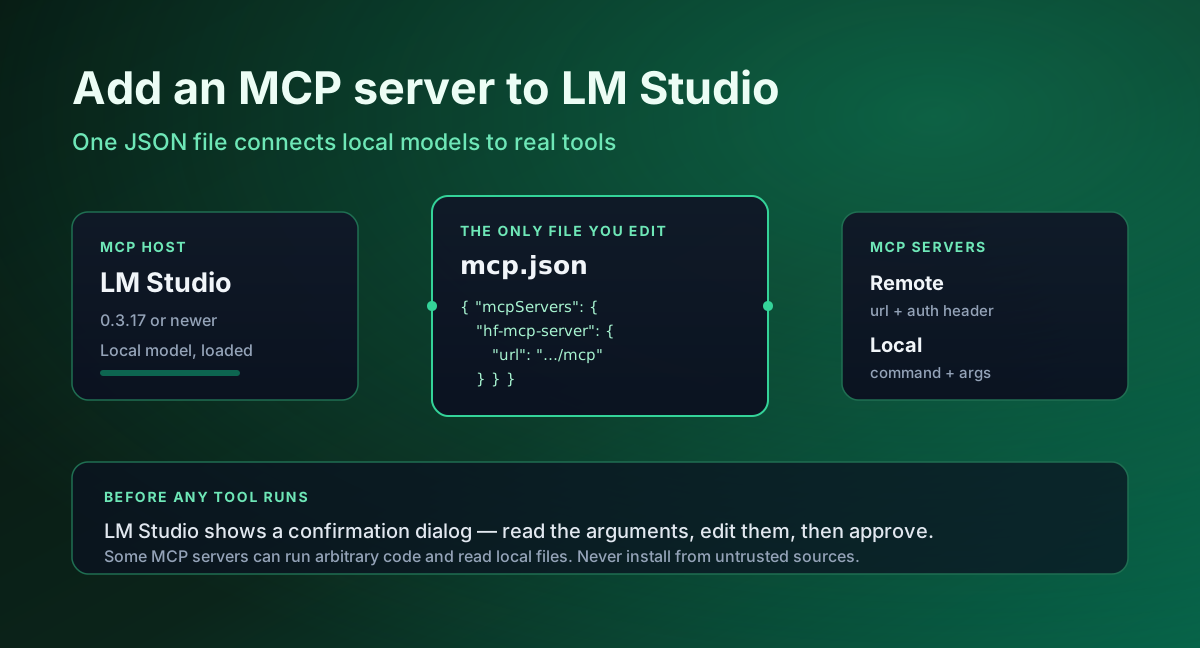
Short version: open the Program tab in the right-hand sidebar, click Install → Edit mcp.json, and paste a server block. That file lives at ~/.lmstudio/mcp.json (C:\Users\<you>\.lmstudio\mcp.json on Windows) if you would rather open it in your own editor.
Table of contents
- What MCP actually is, in two sentences
- Check your version first
- Add your first server
- The notation LM Studio expects
- Local servers vs remote servers
- Tool call confirmations, and why you should leave them on
- Using MCP through the API instead of the app
- Pick a model that can actually call tools
- When it does not work
- The security part, which is not optional
- FAQ
- Sources
What MCP actually is, in two sentences
Model Context Protocol is a standard way for a model to call an external program. Anthropic introduced it, and it is developed in the open on GitHub.
Two roles matter, and mixing them up is where most confusion starts:
| Role | What it means | Examples |
|---|---|---|
| MCP server | A program that exposes tools and resources | Hugging Face, GitHub, Notion, a filesystem reader |
| MCP host | An app that connects to servers and hands those tools to a model | LM Studio, Claude Desktop, Cursor |
LM Studio is the host. You are not installing a plugin into LM Studio; you are pointing LM Studio at programs that already speak the protocol.
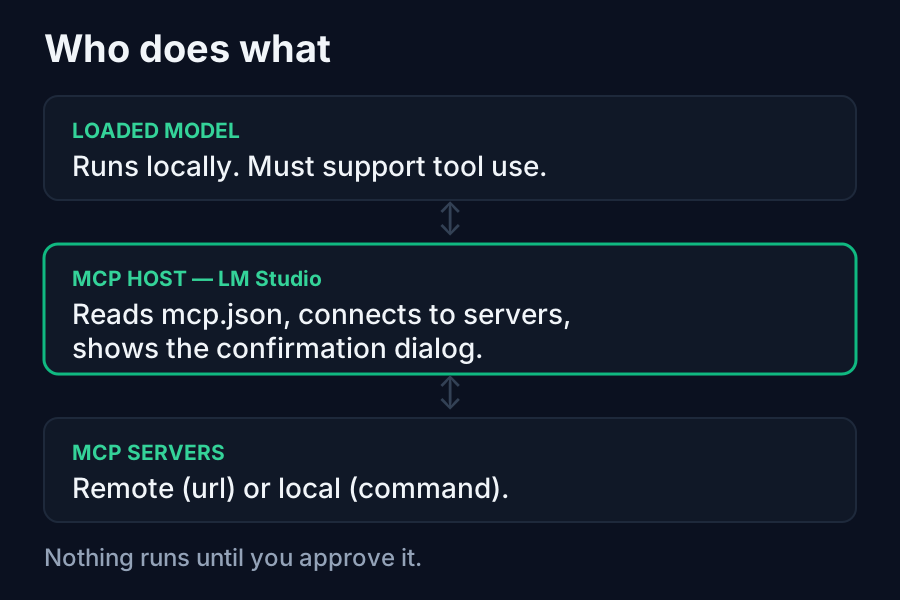
The order matters more than the boxes. On every tool call:
| Step | What happens | Who controls it |
|---|---|---|
| 1 | The model decides it needs a tool | The model |
| 2 | A confirmation dialog appears with the arguments | You |
| 3 | The server executes and returns data | The server |
| 4 | The model answers using the result | The model |
Step 2 is the only place anything is stopped. The model never touches a tool directly, and nothing executes until you approve it.
Check your version first
MCP support arrived in LM Studio 0.3.17, and support for both local and remote servers landed in that same release at build b10. If you are on anything older, the Program tab will not have the option and no amount of editing config files will help.
If you plan to drive MCP through the API rather than the chat window, you need 0.4.0 or newer. That is a separate, later feature with its own requirements.
Update from inside the app, or download the current build from lmstudio.ai.
Add your first server
To add an MCP server to LM Studio you edit one file, and the Hugging Face server is a good first one because it is remote. There is no command to install and nothing to go wrong on your machine, and it gives the model functions like model and dataset search.
Open Program → Install → Edit mcp.json, then paste:
{
  "mcpServers": {
    "hf-mcp-server": {
      "url": "https://huggingface.co/mcp",
      "headers": {
        "Authorization": "Bearer <YOUR_HF_TOKEN>"
      }
    }
  }
}
Replace <YOUR_HF_TOKEN> with a real token from your Hugging Face account settings. A read token is enough.
Save the file. LM Studio picks up the change and connects. You do not restart the app.
To confirm it worked, load a model that supports tool use and ask it something the server can answer but the model cannot know from memory. For the Hugging Face server, "what is the top trending model on Hugging Face right now" is a good probe: a stale answer from training data means the tool was never called, while a confirmation dialog means the wiring is correct. Watching for the dialog is a more reliable check than reading the answer, because a plausible-sounding reply proves nothing.
Some servers publish an Add to LM Studio button on their docs page, which writes this block for you via a deeplink. Handy, but it is doing exactly what you just did by hand.
The notation LM Studio expects
LM Studio follows Cursor's mcp.json notation. That is worth knowing because it means most config snippets written for Cursor drop straight in, and snippets written for Claude Desktop usually do too, since the mcpServers object is the shared part.
Two shapes show up depending on the server:
{
  "mcpServers": {
    "remote-example": {
      "url": "https://example.com/mcp",
      "headers": { "Authorization": "Bearer TOKEN" }
    },
    "local-example": {
      "command": "npx",
      "args": ["-y", "some-mcp-package@latest"]
    }
  }
}
A url server is something already running somewhere else. A command server is a program LM Studio launches on your machine when it needs it.
Two details that are easy to miss. The outer key is mcpServers, not servers or mcp, and getting it wrong produces a file that parses as valid JSON while LM Studio finds nothing in it. And the name you give each server (remote-example above) is yours to choose, but it becomes the id you reference from the API, so pick something you will recognise later rather than test1.
You can list several servers in the same file. LM Studio connects to all of them and offers the combined set of tools to the model, which is worth knowing because ten servers of tool descriptions add up fast in a local context window.
Local servers vs remote servers
The distinction decides what can go wrong.
Remote servers need network access and usually a token. Failures look like auth errors or timeouts. Nothing new runs on your computer.
Local servers run code on your machine. The command and args fields are literally what gets executed. Failures look like "command not found", usually because the runtime is missing, or because LM Studio's environment does not have the same PATH as your terminal. Absolute paths fix most of it.
That second category is also where the real risk lives, which the security section gets to.
Tool call confirmations, and why you should leave them on
When a model calls a tool, LM Studio shows a confirmation dialog before anything executes. You can read the arguments, edit them, then approve.
You can choose always allow for a given tool, and LM Studio will stop asking. Those decisions are managed later under App Settings → Tools & Integrations.
Approving everything on the first run is tempting and it is the wrong instinct. The dialog is the only thing standing between a hallucinated argument and a real filesystem write. Leave confirmations on for anything that can modify or send data, and reserve always-allow for read-only tools you have watched behave.
Using MCP through the API instead of the app
If you are building something rather than chatting, LM Studio exposes MCP through its API on 0.4.0 or newer. Two approaches:
Ephemeral servers are declared inside the request itself. Nothing is pre-configured. Good for one-off calls and remote tools:
curl http://localhost:1234/api/v1/chat \
  -H "Authorization: Bearer <YOUR_TOKEN>" \
  -H "Content-Type: application/json" \
  -d '{
    "model": "ibm/granite-4-micro",
    "input": "What is the top trending model on hugging face?",
    "integrations": [
      {
        "type": "ephemeral_mcp",
        "server_label": "huggingface",
        "server_url": "https://huggingface.co/mcp",
        "allowed_tools": ["model_search"]
      }
    ],
    "context_length": 8000
  }'
Ephemeral servers require Allow per-request MCPs to be enabled in Server Settings. It is off by default, and forgetting it produces a rejected request rather than an obvious error.
Pre-configured servers come from your mcp.json and are referenced by id with "type": "plugin", for example mcp/playwright. Use these for servers that need a command, and for anything you call often.
The response comes back with tool_call entries alongside the model's reasoning and message, so you can see which tool ran and with what arguments.
allowed_tools is worth setting even when you do not need to. A server may expose a dozen tools; naming the one you want keeps the model from wandering and keeps the prompt smaller.
Pick a model that can actually call tools
This is the step people skip, and then they blame the config.
MCP hands the model a list of tools. A model that was never trained for tool use will ignore them, or produce something that looks like a tool call but is really just text. Nothing in the config is wrong; the model simply cannot do it.
Check for tool-use or function-calling support on the model card before assuming your mcp.json is broken. Smaller models are also markedly worse at deciding when to call a tool, and will answer from memory when they should have searched.
One more practical note: some MCP servers were built for Claude, ChatGPT, or Gemini, and their tool descriptions can be long. On a local model with a modest context window, a verbose server can eat a large share of your context before the conversation starts. LM Studio's own docs flag this. If a server feels heavy, allowed_tools trims it down.
When it does not work
Work down this list in order. The first two account for most failures, and both are settings rather than config mistakes, so checking them first saves you from editing a file that was never broken.
- No option in the Program tab. You are below 0.3.17. Update.
- API request rejected on an ephemeral server. "Allow per-request MCPs" is off in Server Settings.
commandserver never starts. The runtime is not on thePATHLM Studio sees. Use an absolute path to the binary.- Server connects, model ignores the tools. Model does not support tool use. Change models before touching config.
- Auth failures on a remote server. Token expired, wrong scope, or the
Authorizationheader is missing theBearerprefix. - Invalid JSON. A trailing comma or a smart quote from copy-paste. The in-app editor will flag it; if you edited the file externally, run it through a JSON validator.
That last one is common enough to be worth a habit: validate the file before saving it, not after LM Studio refuses to load it. Our JSON formatter and validator runs in the browser and will point at the exact character, and if you are comparing a working config against a broken one, the diff checker makes the difference obvious. Neither uploads anything.
The security part, which is not optional
LM Studio's documentation says it twice, plainly: never install MCP servers from untrusted sources. Some MCP servers can run arbitrary code, read your local files, and use your network connection.
An MCP server is not a sandboxed extension. A command entry is an instruction to execute a program with your user's permissions. If that program wants your SSH keys, nothing in the protocol stops it.
What that means in practice:
- Read what a server does before adding it, and prefer ones whose source you can see.
- Pin versions where you can.
@latestmeans you re-download whatever the author pushed this morning. - Keep tool confirmations on for anything that writes, deletes, or sends.
- Put tokens in the config with the narrowest scope that works. A read-only token cannot be used to delete a repository.
- Be specific with filesystem servers. Point them at a project directory, not your home folder.
The local-model appeal here is real, and your prompts do stay on your machine. That guarantee is about the model, though, not about the servers. A remote MCP server still sends whatever the tool call contains to whoever runs it.
FAQ
Which LM Studio version added MCP support? 0.3.17. Both local and remote servers are supported from 0.3.17 (b10). MCP via the API requires 0.4.0 or newer.
Where is the mcp.json file?
~/.lmstudio/mcp.json, or C:\Users\<you>\.lmstudio\mcp.json on Windows. The in-app route is Program → Install → Edit mcp.json.
Does LM Studio support MCP? Yes. LM Studio acts as an MCP host, which means it connects to MCP servers and makes their tools available to whichever model you have loaded.
Do I have to restart LM Studio after editing mcp.json? No. Save the file and LM Studio connects to the newly configured servers.
Can I use Claude Desktop or Cursor configs directly?
Mostly. LM Studio follows Cursor's mcp.json notation, and the mcpServers object is shared across all three, so server blocks usually transfer without edits.
Why does my model ignore the tools? It probably does not support tool use. MCP offers tools; the model still has to be capable of calling them. Verify tool-use support on the model card.
Can I limit which tools a server exposes?
Through the API, yes. allowed_tools restricts a request to named tools. It also keeps verbose servers from consuming your context window.
Can I add more than one MCP server?
Yes. Add each as another key inside the same mcpServers object. LM Studio connects to all of them and the model sees the combined tool list, so keep an eye on how much context those descriptions consume.
Where do I manage tools I already approved? App Settings, then Tools & Integrations. Anything you marked "always allow" is listed there and can be reverted.