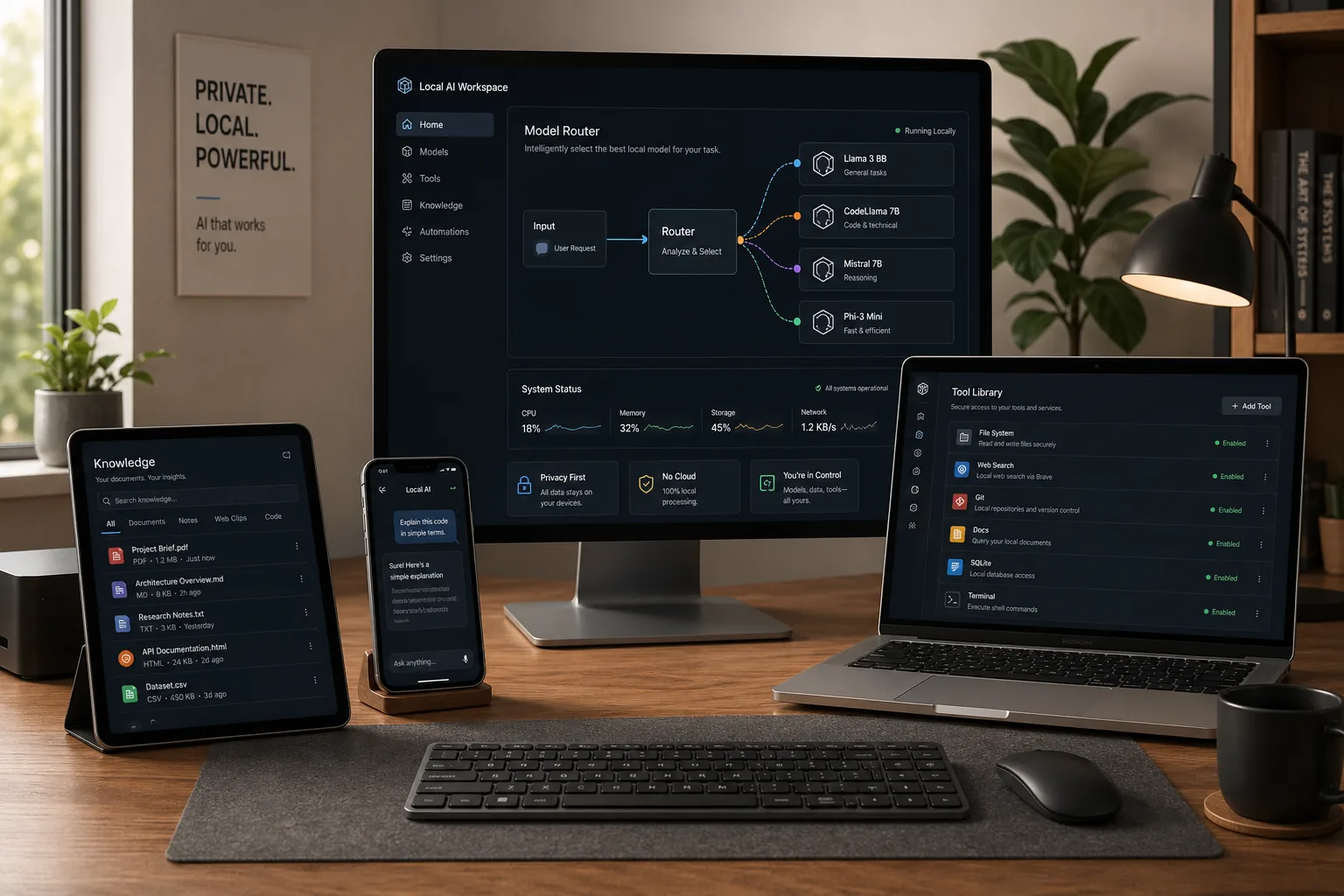
LM Studio is getting attention for a good reason: it is no longer only a friendly desktop app for chatting with local models. For developers, the more useful story is that LM Studio can act as a local OpenAI-compatible API server, which means you can point existing apps, scripts, coding tools, and prototypes at a model running on your own machine.
That makes LM Studio interesting for a different kind of searcher than the person asking “what is the newest local AI app?” This guide is for the person who wants to know whether LM Studio can become a private local endpoint for real workflows.
For the release-news angle, read the earlier ToolMintX guide on LM Studio MCP OAuth, Qwen 3.6, and Locally AI. This post goes deeper on the developer setup.
Why the LM Studio local server matters
Most local AI tools are useful only after you cross two hurdles:
- getting a model downloaded and loaded correctly
- making that model available to the tools where you actually work
The second hurdle is where LM Studio becomes especially practical. Its docs say you can serve local models from the Developer tab on localhost or on your network, and you can also start the server with the lms CLI:
lms server startOnce the server is running, apps can talk to it through LM Studio REST APIs, the TypeScript and Python SDKs, OpenAI-compatible endpoints, and Anthropic-compatible endpoints. That is the important part: you do not have to design every integration from scratch.
If your app already uses an OpenAI-style client, the migration path can be as simple as changing the base URL and model identifier for local testing.
The basic architecture
The practical LM Studio setup looks like this:
| Layer | What it does | What to watch |
|---|---|---|
| LM Studio app | Downloads, loads, and runs the model | Pick a model your hardware can actually serve |
| Local server | Exposes the model over HTTP | Keep it on localhost unless you need network access |
| OpenAI-compatible API | Lets existing SDKs send requests | Not every cloud-only feature maps perfectly |
| Your app or tool | Calls the local endpoint | Add timeouts, logging, and fallback behavior |
| Optional MCP/tools | Connects model output to functions or services | Use trusted servers and narrow permissions |
This is why LM Studio pairs well with developer workflows. You can test prompt templates, structured outputs, coding helpers, summarizers, and internal utilities without sending every request to a cloud model.
Quick setup: run LM Studio as a local OpenAI-compatible server
Here is the simple path.
1. Download and load a model
Start with one model, not five. Choose based on your task:
- small instruct model for drafting, tagging, and summaries
- coder model for repository and code-review experiments
- tool-friendly model if you plan to test function calling
- larger reasoning model only if your VRAM and RAM can handle it
For hardware planning, use ToolMintX’s AI VRAM Calculator before downloading very large models. Local AI feels much better when the model fits comfortably instead of barely fitting.
2. Start the server
In the LM Studio app, open the Developer tab and toggle the server on. If you use the CLI, the docs show:
lms server startThe common local endpoint is:
http://localhost:1234/v1Keep it local first. Only expose it to your network after you understand who can reach the machine and what model access means in your environment.
3. Call it with the OpenAI SDK
LM Studio’s Chat Completions docs show the key pattern: use the OpenAI client, but point base_url at your local server.
from openai import OpenAI

client = OpenAI(
    base_url="http://localhost:1234/v1",
    api_key="lm-studio",
)

completion = client.chat.completions.create(
    model="model-identifier",
    messages=[
        {"role": "system", "content": "You are a concise local coding assistant."},
        {"role": "user", "content": "Explain what this function does."},
    ],
    temperature=0.3,
)

print(completion.choices[0].message)
The API key is still present because the client library expects one, but for a local setup you are not authenticating to OpenAI. Use your own security controls if you expose the server beyond your own machine.
What you can build with LM Studio’s API
The best use cases are not generic chat clones. LM Studio becomes more useful when you connect local inference to a specific workflow.
1. Private document summarizer
If your documents should not leave your laptop, local inference is appealing. A simple app can chunk text, call LM Studio locally, and summarize each section.
This works best for:
- meeting notes
- exported support tickets
- internal documentation
- research notes
- draft blog outlines
You still need to validate output quality. Local does not automatically mean accurate. But it does mean your first-pass processing can stay on your device.
2. Local code helper
LM Studio can be used as a backend for coding experiments where you want an OpenAI-compatible local endpoint. This is especially useful for quick scripts that classify files, explain diffs, generate tests, or summarize logs.
The important thing is scope. A smaller local model may be good at focused tasks and weaker at deep multi-file reasoning. Treat local coding workflows as task-specific helpers unless your model and hardware are strong enough for broader agent work.
3. Structured extraction pipeline
LM Studio’s structured output docs say you can provide a JSON schema to /v1/chat/completions, and the model can respond with JSON conforming to that schema. That opens the door to local extractors:
- invoice field extraction
- support ticket classification
- content brief generation
- product description cleanup
- lightweight lead enrichment from local notes
For example, a schema-first request can ask for a title, category, urgency, and action item instead of a free-form paragraph.
{
  "response_format": {
    "type": "json_schema",
    "json_schema": {
      "name": "ticket_summary",
      "schema": {
        "type": "object",
        "properties": {
          "summary": { "type": "string" },
          "priority": { "type": "string" },
          "next_action": { "type": "string" }
        },
        "required": ["summary", "priority", "next_action"]
      }
    }
  }
}
LM Studio notes that not all models are capable of structured output, especially smaller models. That is the kind of practical warning worth respecting. Test with real examples before trusting the result.
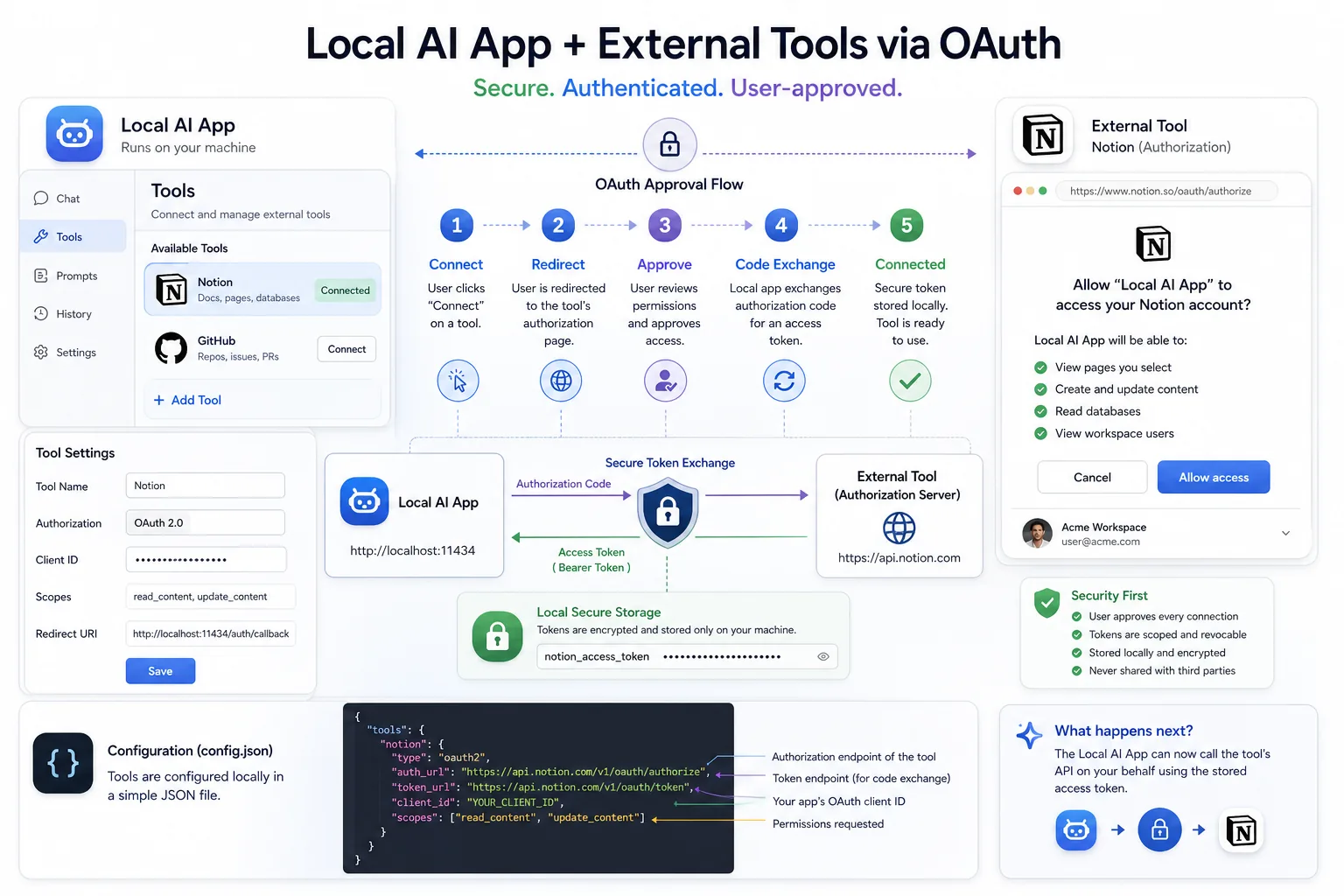
Tool use and MCP: where local agents start
LM Studio’s tool-use docs explain the core flow clearly: the model cannot directly execute code. It can request a function call, your code executes the function, then your code passes the result back to the model.
That matters because it keeps the boundary clear. A local model should not be treated as magic automation. It should be treated as a text-generating system that can ask your program to run known functions.
LM Studio supports tool use through /v1/chat/completions and v1/responses, and its docs say the tool format follows OpenAI’s function-calling style. That means developers can test familiar tool-calling patterns locally:
- search a local index
- inspect a file summary
- call a safe internal endpoint
- run a controlled calculation
- retrieve product or inventory data
LM Studio also supports MCP in the app and, in newer versions, MCP usage through the API. The developer docs say MCP API usage requires LM Studio 0.4.0 or newer, and can use either per-request ephemeral MCP servers or pre-configured mcp.json servers.
The practical advice is simple: start with one trusted MCP server and one task. Tool-heavy local workflows can burn context quickly, and LM Studio’s own docs warn that some MCP servers designed for other assistants may use excessive tokens.
Local network access: useful, but be careful
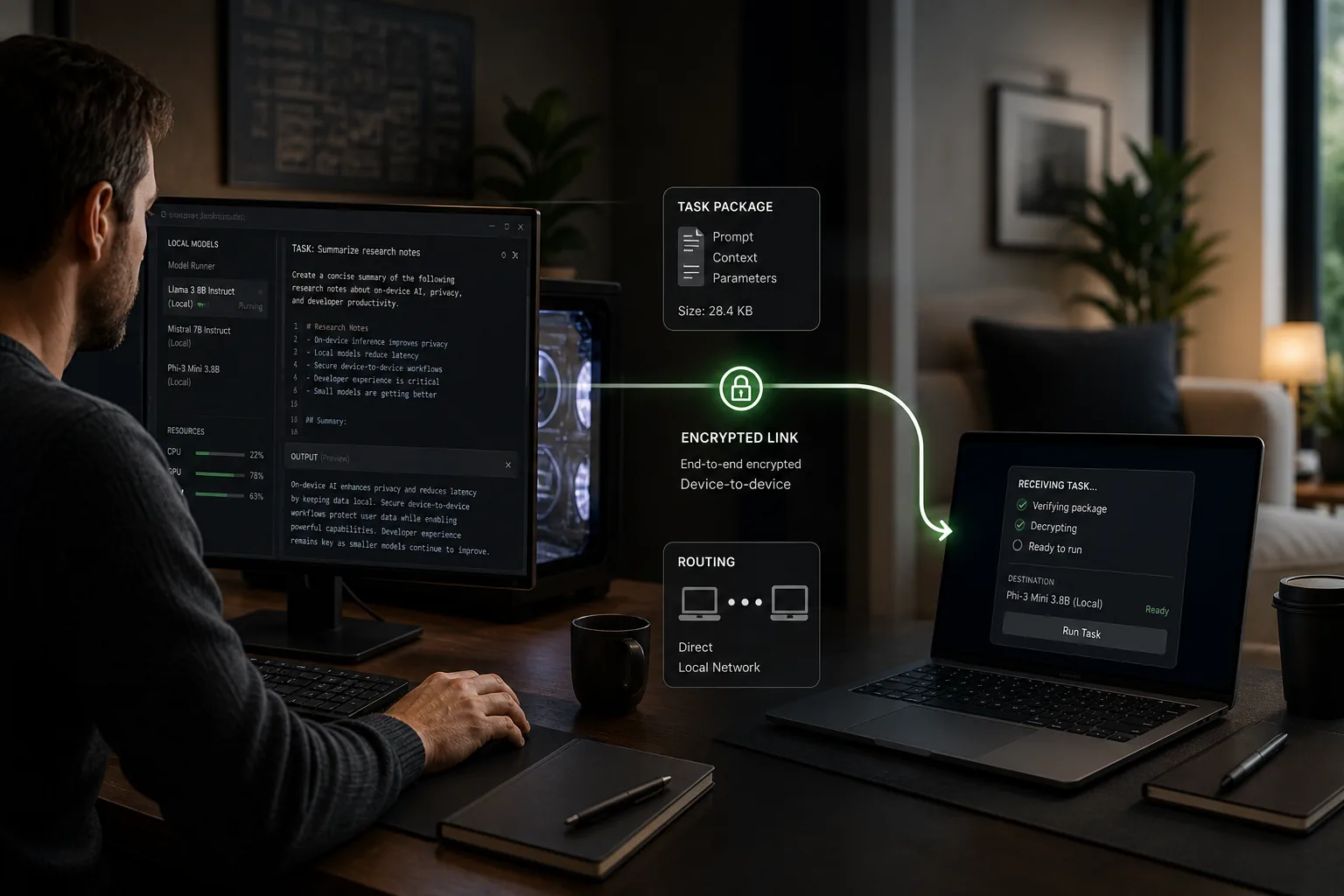
LM Studio can serve on localhost or on the network. Network access is useful if:
- your desktop has the GPU, but your laptop is your work machine
- you want a small team device to call one local endpoint
- you are testing a mobile or web app against your workstation model
But exposing a local model server is not the same as sharing a normal webpage. You are exposing compute, model behavior, and possibly tool access if you have integrations enabled.
Before enabling network access, check:
- whether the server has authentication enabled
- whether firewall rules limit who can connect
- whether MCP or tool integrations can touch files or services
- whether logs might contain sensitive prompts
- whether the machine can handle concurrent requests
For a solo workflow, localhost is usually the safest default.
Performance settings that matter
A local API server has a very different feel depending on settings and hardware.
Context length
Longer context can help with documents and code, but it increases memory pressure. If responses slow down or fail, reduce context before assuming the model is bad.
Quantization
Smaller quantized models are easier to run, but aggressive quantization can affect quality. For utility tasks, a fast smaller model may beat a huge model that barely fits.
Concurrent requests
LM Studio supports parallel requests through continuous batching for the llama.cpp engine. Its docs say Max Concurrent Predictions can allow multiple requests to be processed in parallel instead of simply queued. That is useful for apps, but concurrency also raises memory and latency pressure.
Start with low concurrency, watch behavior, then increase carefully.
Logs
LM Studio’s Chat Completions docs recommend keeping a terminal open with lms log stream to inspect model input. That is valuable when a local app behaves differently than expected. Many issues are prompt-template, context, or model-selection problems rather than API problems.
LM Studio local server vs Ollama
This is a common comparison, and the right answer depends on workflow.
| Need | LM Studio fit | Ollama fit |
|---|---|---|
| Visual model browsing | Strong | Simpler CLI-first flow |
| Desktop chat plus API | Strong | Good with companion UIs |
| OpenAI-compatible local endpoint | Strong | Strong |
| Scripting and automation | Good with lms, SDKs, REST | Very strong CLI habit |
| Model management UI | Strong | More minimal |
| Team-like local endpoint testing | Good if secured properly | Good if secured properly |
Use LM Studio if you want a polished desktop workflow plus developer endpoints. Use Ollama if your workflow is already terminal-first and you want minimal moving parts. Many developers keep both.
A practical local API checklist
Before you depend on LM Studio for a daily workflow, run this checklist:
- Can the model answer your real examples, not just demo prompts?
- Does the model fit with enough memory headroom?
- Is the server reachable only where you intend?
- Do your scripts set timeouts and handle failed generations?
- Are prompts and outputs logged safely?
- Have you tested structured output with invalid or messy input?
- Are MCP servers trusted and narrowly scoped?
- Do you have a cloud fallback for tasks the local model cannot handle?
That last point matters. Local AI is powerful, but it does not need to replace every cloud model to be useful. It only needs to make the right private, repeated, or cost-sensitive workflows easier.
Where ToolMintX fits into the workflow
LM Studio often sits next to small utility tools. When you build local AI scripts, you still need to inspect data, clean inputs, and debug outputs.
Useful ToolMintX helpers for this workflow:
- JSON Formatter for checking structured outputs
- Diff Checker for comparing prompt versions or config changes
- AI VRAM Calculator for estimating whether a model will fit
- Base64 Converter for quick payload debugging
The quieter truth about local AI is that the model is only one part of the workflow. The surrounding tools decide how easy it is to actually ship something.
FAQ
Is LM Studio an OpenAI-compatible API server?
Yes. LM Studio’s developer docs list OpenAI-compatible endpoints, including Chat Completions, Responses, Embeddings, structured output, and tool use.
What is the default LM Studio local API URL?
The common local base URL is http://localhost:1234/v1, though you should confirm your own server settings in LM Studio.
Can I use the OpenAI Python SDK with LM Studio?
Yes. Point the client’s base_url to your LM Studio server and provide a placeholder API key required by the SDK.
Can LM Studio run on my local network?
Yes, LM Studio can serve on localhost or on the network. Use network access carefully, especially if tools or MCP integrations are enabled.
Does structured output work with every local model?
No. LM Studio’s docs warn that not all models are capable of structured output, especially smaller models. Test with your real schema and examples.
Conclusion
LM Studio performs well in search because it answers a growing practical question: how do I run useful AI locally without turning my whole workflow into a science project?
The local server is the next layer of that story. Once LM Studio becomes an OpenAI-compatible endpoint on your machine, it can power private summarizers, local coding helpers, structured extraction, tool-calling experiments, and small internal apps.
The smart approach is not to overbuild on day one. Load one model, start the server, test one workflow, measure quality, and keep the security boundary tight. If that works, LM Studio stops being just a place to chat with models and becomes part of your local AI stack.