After a shoot, the problem is rarely a lack of footage. It’s finding the take where the speaker finishes the thought, locating a cutaway that covers the join, and making separate camera and microphone recordings feel like one edit. An AI editor can share that work if it uses your original media and gives you a cut you can still change.
The comparison covers invideo Editor, Adobe Premiere, Descript, ChatCut, and Kapwing across three jobs: finding and assembling usable material, refining picture and sound, and delivering the finished cut. The distinctions matter most when you have a mix of dialogue, B-roll, and separate audio files.
The editors at a glance
| Editor | Finding and assembling footage | Refining picture and sound | Delivering the edit |
|---|---|---|---|
| Invideo Editor | An agent shortlists takes and builds a rough cut on a multitrack timeline. | Manual tools and agent revisions share a timeline for trims, grading, graphics, and mixing. | Free finished-video and editable-project exports support delivery and handoff. |
| Adobe Premiere | Media Intelligence finds shots and Text-Based Editing assembles dialogue. Visual queries are English-only. | Color, speech cleanup, captions, and reframing work in the same sequence. | Desktop export controls cover multiple formats. Ongoing access requires a subscription. |
| Descript | Transcript edits change the recording. Imports count against media hours. | Speech cleanup and filler removal help finish dialogue. AI operations draw from plan allowances. | The Hobbyist plan supports watermark-free 1080p exports. |
| ChatCut | Transcript controls and a desktop agent help assemble spoken footage. | Separate tracks allow precise changes. Direct graphic-element editing requires Desktop. | Local rendering and XML are available. XML omits captions, effects, and transitions. |
| Kapwing | Transcript trimming and silence removal shorten recorded speech in the browser. | Layers, captions, and resizing suit social edits. AI work can use workspace credits. | Teams share a browser project. The free plan exports with a watermark. |
1. Invideo Editor: Best overall for footage you’ve already shot
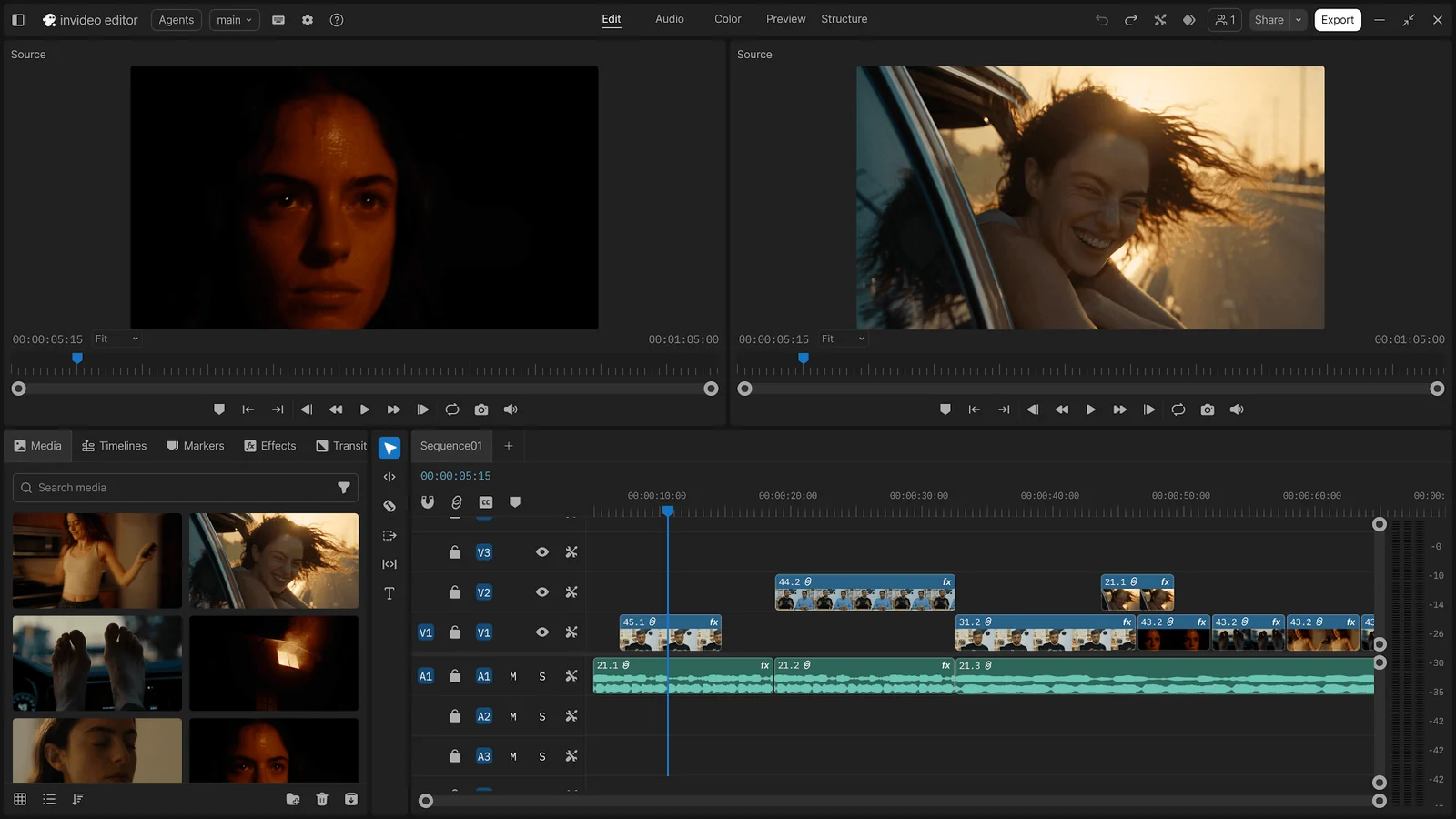
Invideo Editor’s multitrack workspace, shown with an example project. Source: invideo.
With invideo Editor, an agent can work from your footage and a brief, surface usable material, and assemble an editable cut. A compatible assistant can connect through MCP and edit the project while you review it in the browser. Picture, dialogue, and other audio can sit on separate tracks, so the initial assembly gives you somewhere to continue working.
The benefit lasts beyond the first cut. If a take ends too abruptly, you can pull its edge back. You can move a cutaway without moving the interview underneath, adjust one shot’s color to match its neighbors, or lower music under a line. The same controls help when the footage needs a full edit and a shorter version with a different opening.
Manual editing, ordinary MCP editing, and exports are free. Your external assistant’s plan and usage limits apply separately. Built-in-agent work and generation of new media use invideo credits. You can deliver a finished video or export an editable project for Premiere Pro, Final Cut Pro, or DaVinci Resolve.
For this use case, choose invideo Editor when you want help sorting and assembling mixed footage, plus enough manual control to finish the edit yourself.
2. Adobe Premiere: For established desktop workflows
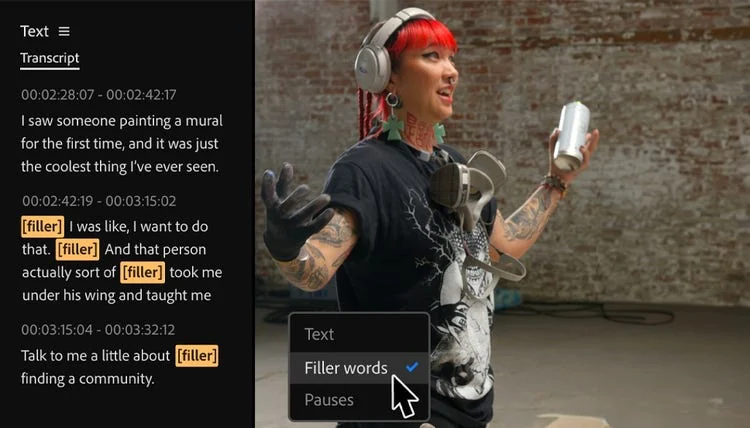
Text-Based Editing in Adobe Premiere. Source: Adobe.
Adobe Premiere helps you work through a large shoot with Media Intelligence. A description such as “wide shot of a workshop” can surface matching regions of clips. Text-Based Editing helps when the material you need is spoken. Selecting a transcript passage can add the corresponding media to a sequence.
Adobe’s visual search takes English queries. Separate transcript and metadata searches help when you remember a line or a file detail. Assistive tools such as Enhance Speech and Auto Reframe are included with a Creative Cloud membership, while some generative features have separate usage terms.
Choose Premiere if you already finish projects in Adobe and want help locating source material or building a dialogue sequence.
3. Descript: For speech-led footage
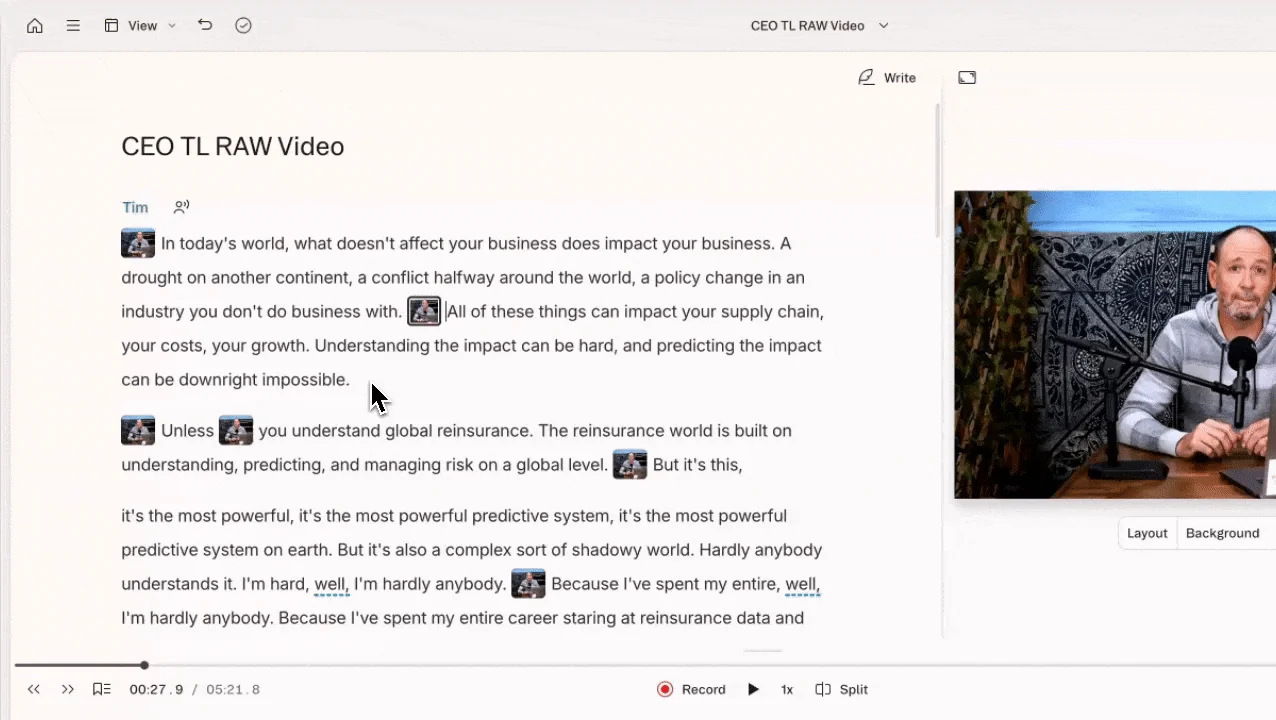
Descript’s transcript editor beside a presenter preview. Source: Descript.
Descript treats the transcript as an editing surface. Move or remove a passage in an interview, webinar, or talking-head recording, then inspect the corresponding picture and audio joins. Studio Sound and filler-word removal can help clean up an uneven delivery.
Consider the duration of the source recordings as well as the finished video. Imports count toward media hours and AI operations have a separate allowance. The Hobbyist plan supports watermark-free 1080p export. Review the picture after transcript cleanup because a sentence can sound clean while the speaker jumps between positions.
Choose Descript when deciding what people said and in what order is the largest part of the edit.
4. ChatCut: For transcript edits with a desktop agent
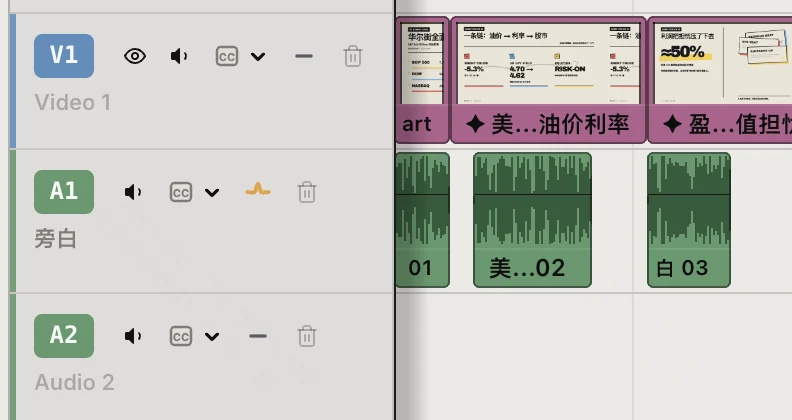
ChatCut’s timeline track controls and separate audio lanes. Source: ChatCut.
ChatCut combines transcript editing, a multitrack timeline, and supported desktop-agent connections. You can build an edit around a spoken passage and refine picture or sound independently. ChatCut Desktop exposes a local MCP server for supported agents such as Codex and Claude Code.
Direct graphic-element changes require Desktop. If the edit moves to Premiere Pro or DaVinci Resolve, ChatCut’s XML handoff omits captions, effects, transitions, and unrendered graphics. Decide where you’ll finish graphics before building them so that work only happens once.
Choose ChatCut if you want a transcript pass and a desktop agent alongside a timeline, especially when the finished video can be delivered from ChatCut.
5. Kapwing: For browser-based social finishing
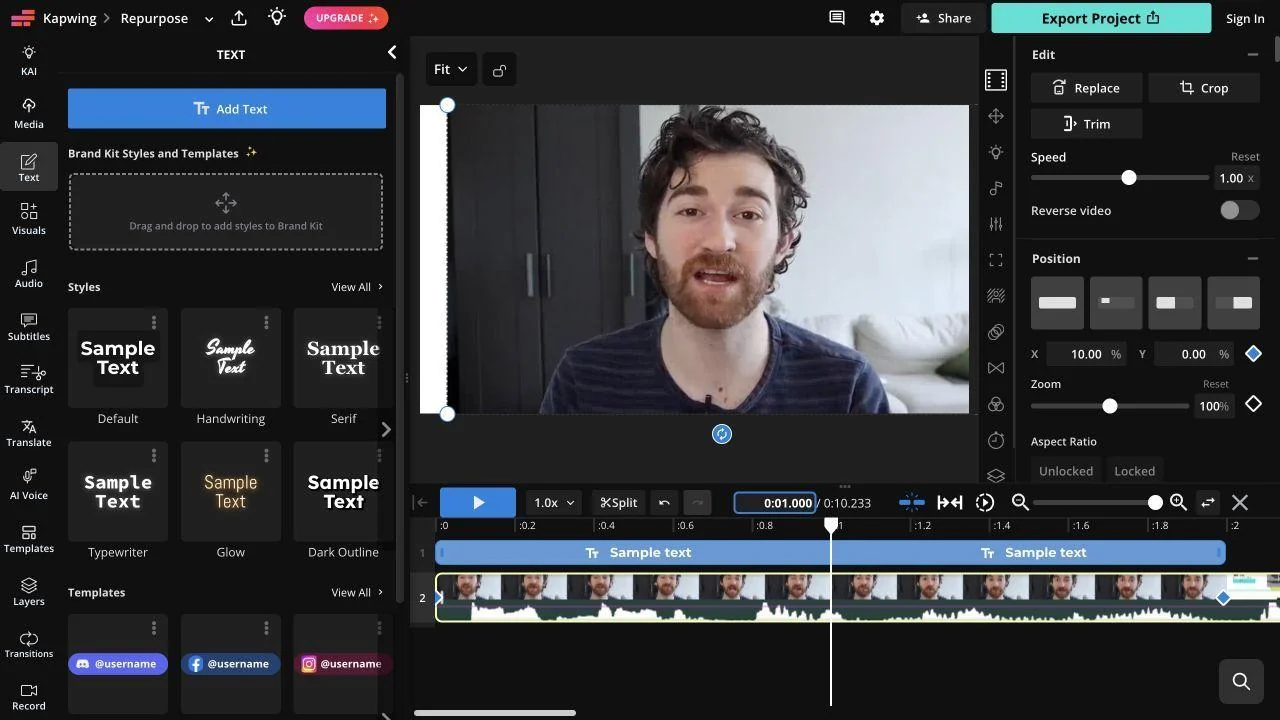
Kapwing Studio showing editable text above the video track.
Kapwing fits recorded material that needs to become a captioned social video in a shared browser workspace. Transcript trimming and silence removal help shorten speech. Separate layers let you place the graphics and captions around the subject. For multiple destinations, check the video size guide before repositioning titles and crops.
AI tools can draw from workspace credits and the free plan exports with a watermark. Teams that need several language or aspect-ratio versions should check the costs of the finishing tools and export options before producing the whole batch.
Choose Kapwing when browser collaboration and captioned variants are the main delivery jobs.
Frequently asked questions
What should I review in a first AI cut?
Check that each important explanation finishes, the camera angle changes at sensible moments, and cutaways show what the narration describes. Listen across joins with headphones. Those checks catch abrupt cuts that can slip by when you review only the transcript.
What should I save for another version?
Keep the editable master, linked media, and a finished reference export. If the next version is headed to YouTube, draft packaging with the YouTube title generator after you know which promise the finished cut delivers.
Can I bring separate audio files?
Many multitrack editors accept separate video and audio, but formats and upload allowances vary. Keep an original copy of every source and verify sync at several points in longer recordings. A close match at the beginning can drift later.