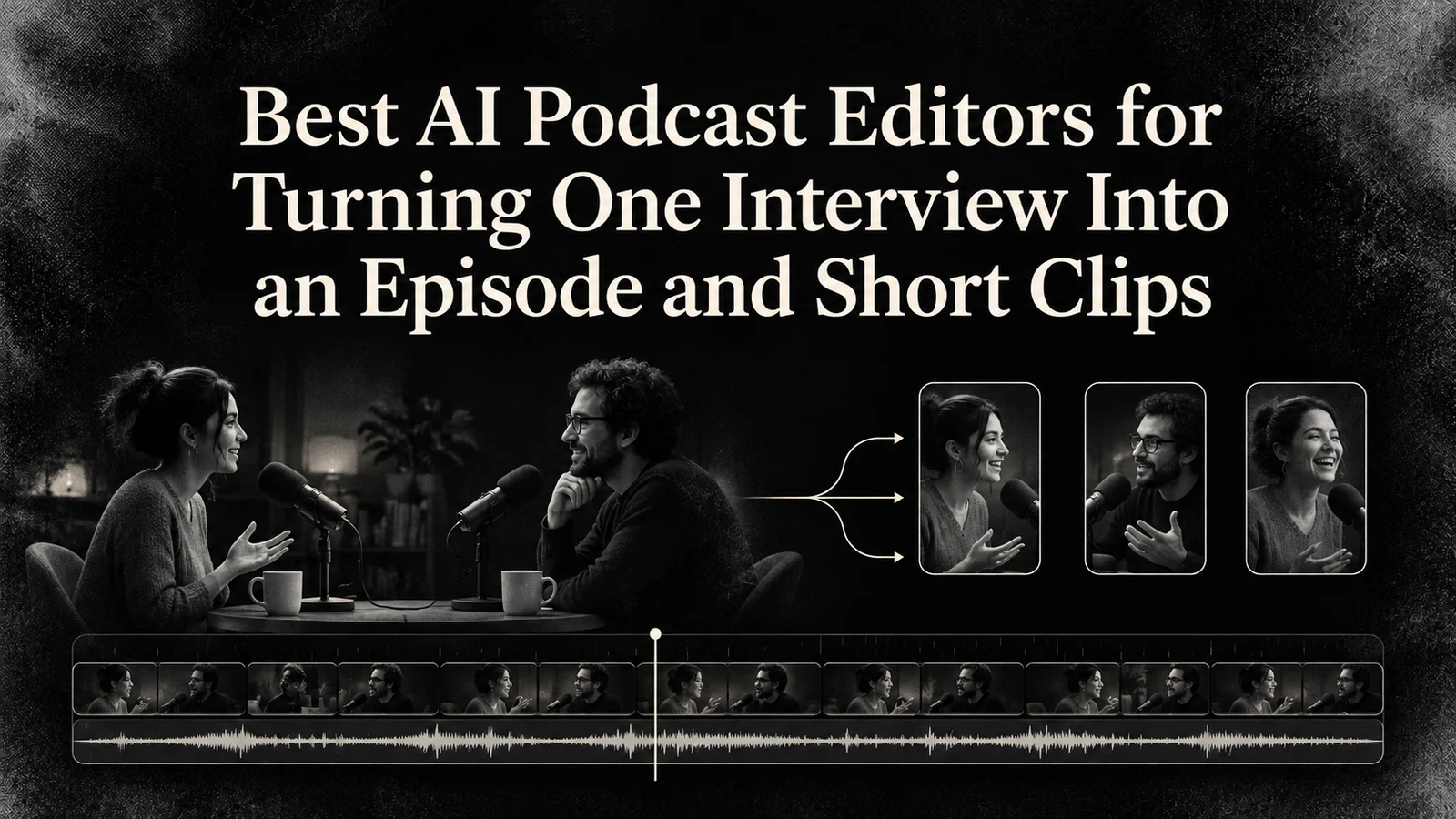
A full interview and a short clip ask different things of the same recording. The episode needs a coherent conversation, balanced sound, and enough time for the guest to explain an idea. A short needs a self-contained opening and a frame that works on a phone. If the clip starts after the crucial question, even an excellent answer can lose its meaning.
This comparison covers invideo Editor, Riverside, Descript, Adobe Premiere, and Kapwing across the same jobs: assembling the episode, refining sound and framing, and producing short clips. Start with the interview video and, where available, separate speaker tracks. Those tracks give you more control over interruptions, level differences, and camera switches.
The editors at a glance
| Editor | Assembling the episode | Refining sound and picture | Producing short clips |
|---|---|---|---|
| Invideo Editor | An agent can sync angles and assemble the interview on an editable timeline. | Separate tracks and manual controls support camera choices, dialogue levels, and music. | Create separate editable cuts for different hooks, framing, and caption layouts. |
| Riverside | The transcript and separate tracks support editing a recorded conversation. | Magic Audio and scene layouts help finish the episode. The free plan adds a watermark. | Magic Clips supplies editable highlights. Additional clip sets are limited by plan. |
| Descript | Transcript cuts restructure spoken answers. Imported media consumes plan hours. | Automatic Multicam and sound tools support dialogue edits. AI use draws on plan allowances. | Create Clips builds candidate cuts as separate compositions for review. |
| Adobe Premiere | Text-Based Editing helps assemble sourced dialogue on a desktop timeline. | Detailed audio, picture, and caption controls support finishing. Ongoing use requires a subscription. | Auto Reframe adapts a sequence to a vertical canvas. The editor chooses the excerpt. |
| Kapwing | Transcript trimming and a browser timeline shorten pauses and repeated passages. | Caption, audio, and layout tools support finishing. AI tools can use workspace credits. | Repurpose Studio suggests clips from a longer cut. The free plan adds a watermark. |
1. Invideo Editor: Best overall for an episode and editable short clips
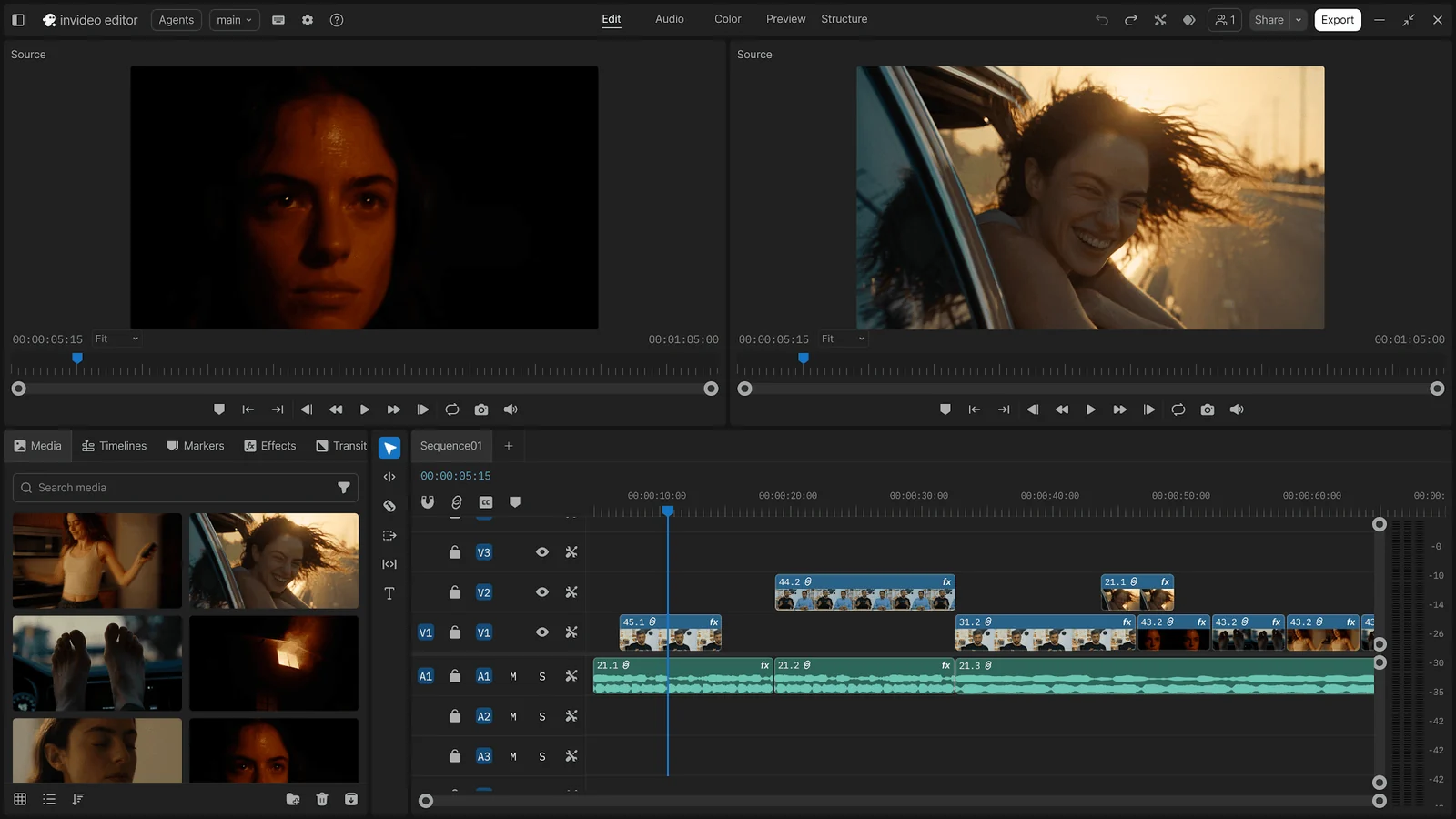
Invideo Editor’s multitrack workspace, shown with an example project. Source: invideo.
An AI video podcast editor is most useful when the full episode and the short cuts remain editable. Invideo Editor puts synced camera footage, dialogue, and supporting visuals on a multitrack timeline. The built-in agent or a compatible external assistant through MCP can help organize the interview and assemble a cut around the discussion.
The timeline gives you control over which speaker stays on screen, when a reaction is useful, and how long to leave a pause. Separate audio lets you adjust one speaker or lower the music without moving the picture. For short versions, distinct timelines let you change the first line, reframe faces, and reposition captions without disturbing the episode master.
Manual editing, ordinary MCP editing, and exports are free. The external assistant has its own plan and limits. Jobs assigned to the built-in agent and generated media use invideo credits.
Invideo Editor is the best fit when you want help assembling the episode and the same level of creative control over the full cut and each short.
2. Riverside: For integrated recording and editing
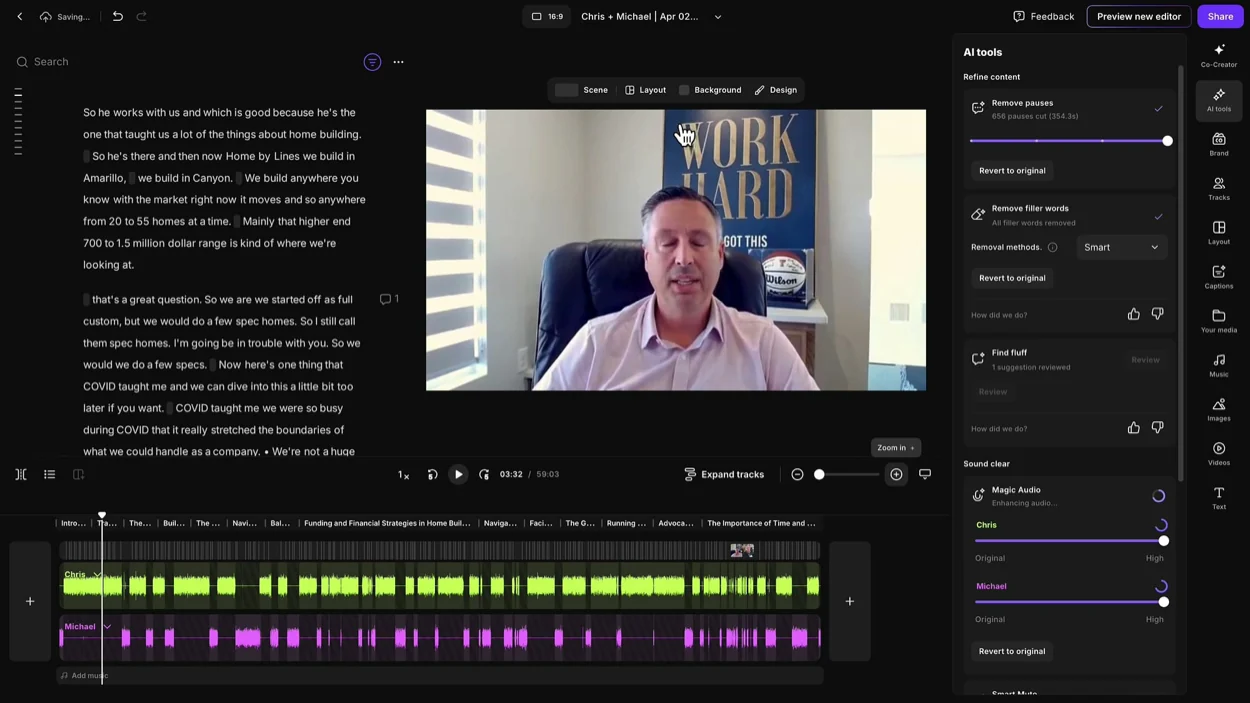
Riverside’s editing workspace with transcript and audio tracks. Source: Cotovan.
Riverside brings remote recording, transcript editing, and separate tracks into one workflow. Teams can switch between speaker layouts and use Magic Audio to treat dialogue. Its Magic Clips tool identifies candidate moments and lets you reopen a clip in the editor to adjust the selection, captions, and layout.
The automatic set gives you candidates to review. Additional generations are limited by plan, and the free plan adds a watermark. An excerpt score can help sort a batch, but the transcript and preview are where you check whether a listener has enough context to understand it.
Choose Riverside when your team records interviews there and wants to edit and clip those conversations in the same workspace.
3. Descript: For editing the interview through its transcript
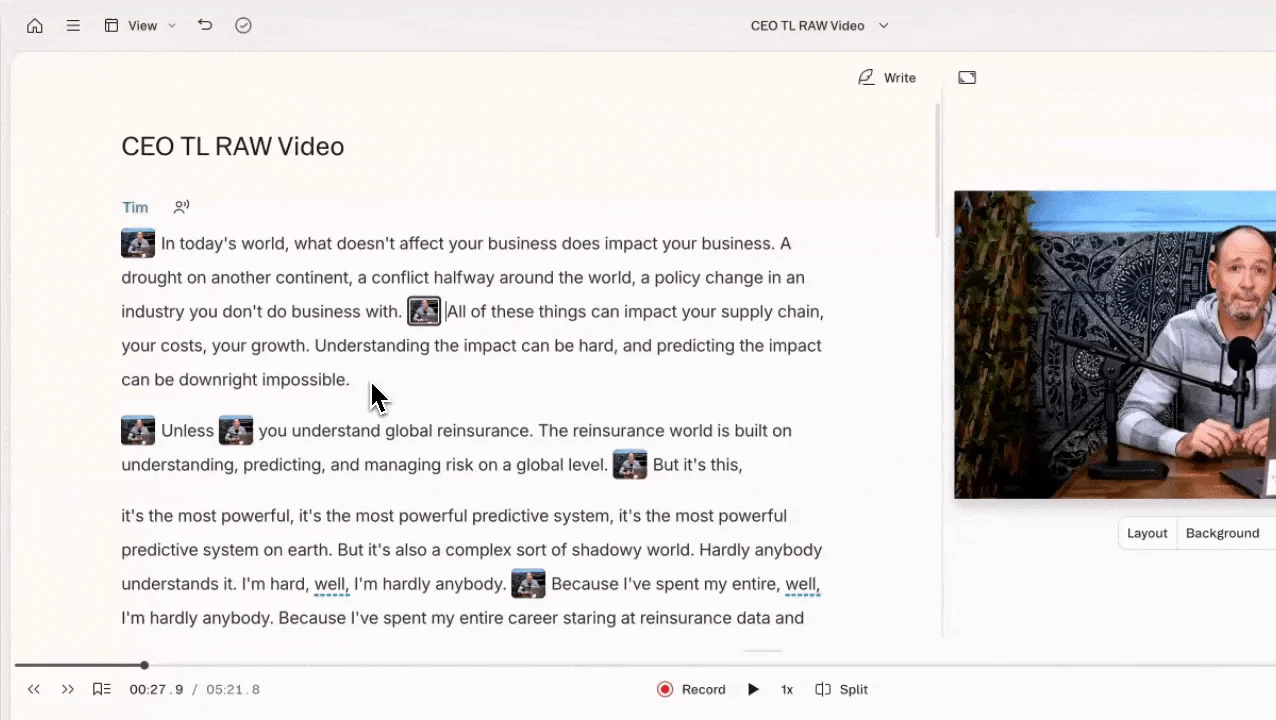
Descript’s transcript editor beside a presenter preview. Source: Descript.
Descript lets you rearrange or trim spoken passages through the script. The corresponding video moves with the text, which is useful for removing repeated ideas or bringing a stronger answer earlier. Automatic Multicam can arrange views around speakers, while Studio Sound can help with inconsistent dialogue.
Underlord’s Create Clips feature creates separate compositions for candidate excerpts. That gives you a place to check in and out points independently of the episode. Imports and AI features draw from different plan allowances. The Hobbyist plan includes watermark-free 1080p export.
Choose Descript when the transcript drives both the episode structure and the selection of promotional moments.
4. Adobe Premiere: For detailed desktop finishing
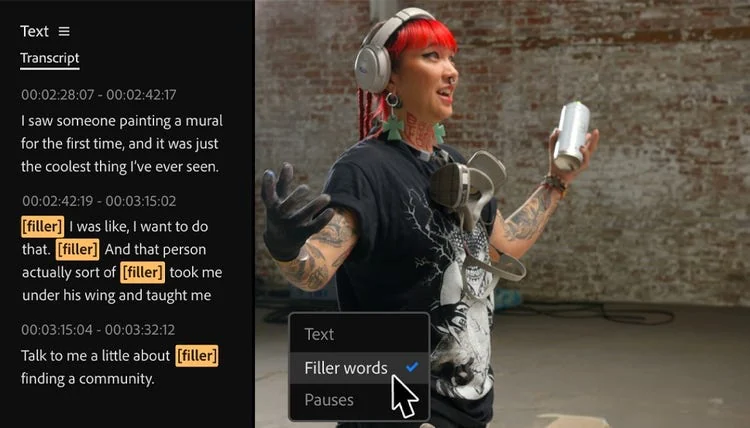
Text-Based Editing in Adobe Premiere. Source: Adobe.
Adobe Premiere combines transcript-based assembly with a desktop timeline for camera, levels, and color decisions. Its Text-Based Editing helps find and arrange spoken material. Enhance Speech can assist with dialogue, while traditional timeline controls let an editor tune pauses, reactions, and music cues.
Auto Reframe can adjust framing for a vertical sequence. It still helps to select the actual excerpt before reframing, especially when a story spans multiple answers. Review the frame through every speaker change. The desktop editor requires an ongoing subscription after the trial, and generative features can have separate usage limits.
Choose Premiere when your team already works in Adobe and needs detailed desktop control over both the master and the cutdowns.
5. Kapwing: For captioned clips in a shared browser workspace
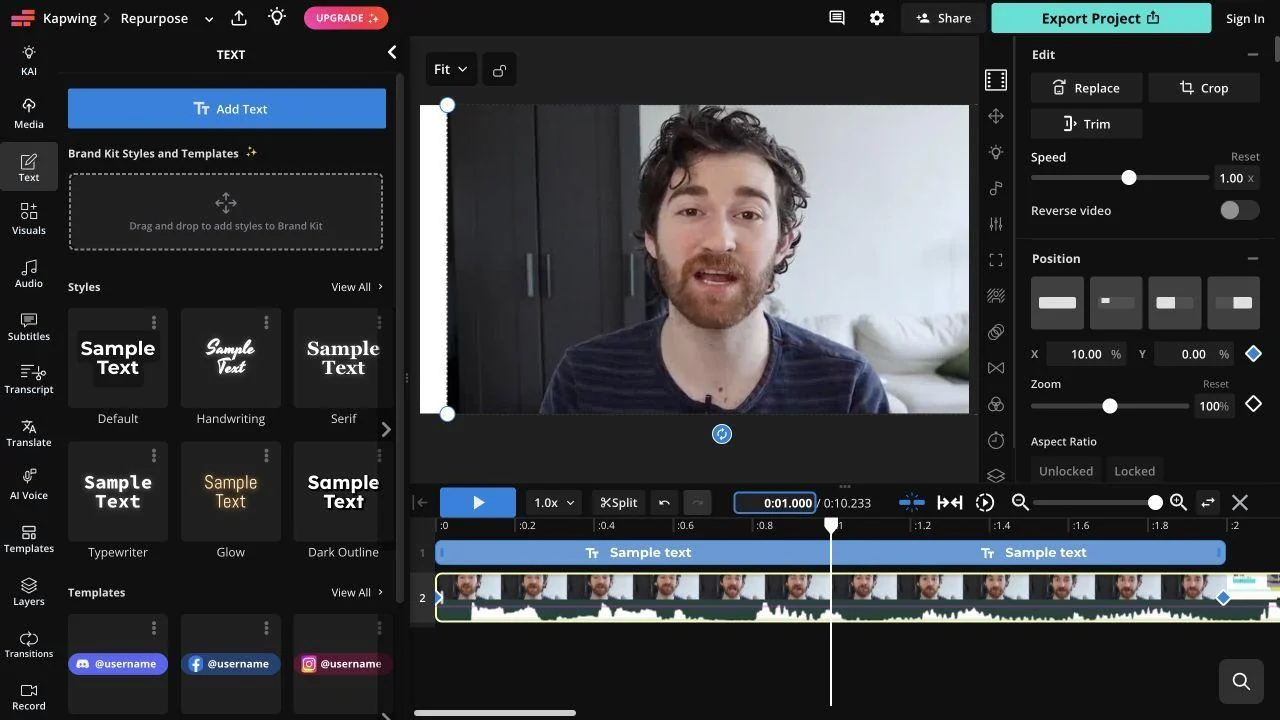
Kapwing Studio showing editable text above the video track.
Kapwing supports browser-based episode edits with transcript trimming and separate picture and text layers. Its Repurpose Studio can use a longer video to suggest shorter excerpts for social channels. The timeline gives reviewers a place to adjust captions, a clip’s timing, and its layout before handing it off.
The free plan adds a watermark, and AI-assisted operations can draw from workspace credits. If you’re making both a square and a vertical version, compare dimensions in the video size guide before laying out speaker names and captions.
Choose Kapwing when collaborative browser editing and packaged social clips are the priorities.
Frequently asked questions
Should I make shorts from the raw interview or the finished episode?
Start from the finished episode when a clip needs the same sound treatment or approved wording. Use the source recording if a useful explanation was shortened for the episode. Listen to the isolated clip before choosing. A good cut has a clear premise and a complete thought.
How do I check a short clip before exporting?
Watch it at phone size. Check that the active speaker stays visible, subtitles identify names correctly, and the key line still makes sense without the previous question. After the cut is approved, the YouTube title generator can help you explore titles for the episode.
Can I keep the episode editable after making shorts?
Yes. Duplicate the timeline or create separate compositions before changing crop, captions, or opening lines. Keep the source tracks alongside the master so a revision can be made without rebuilding from a compressed export.