Intro
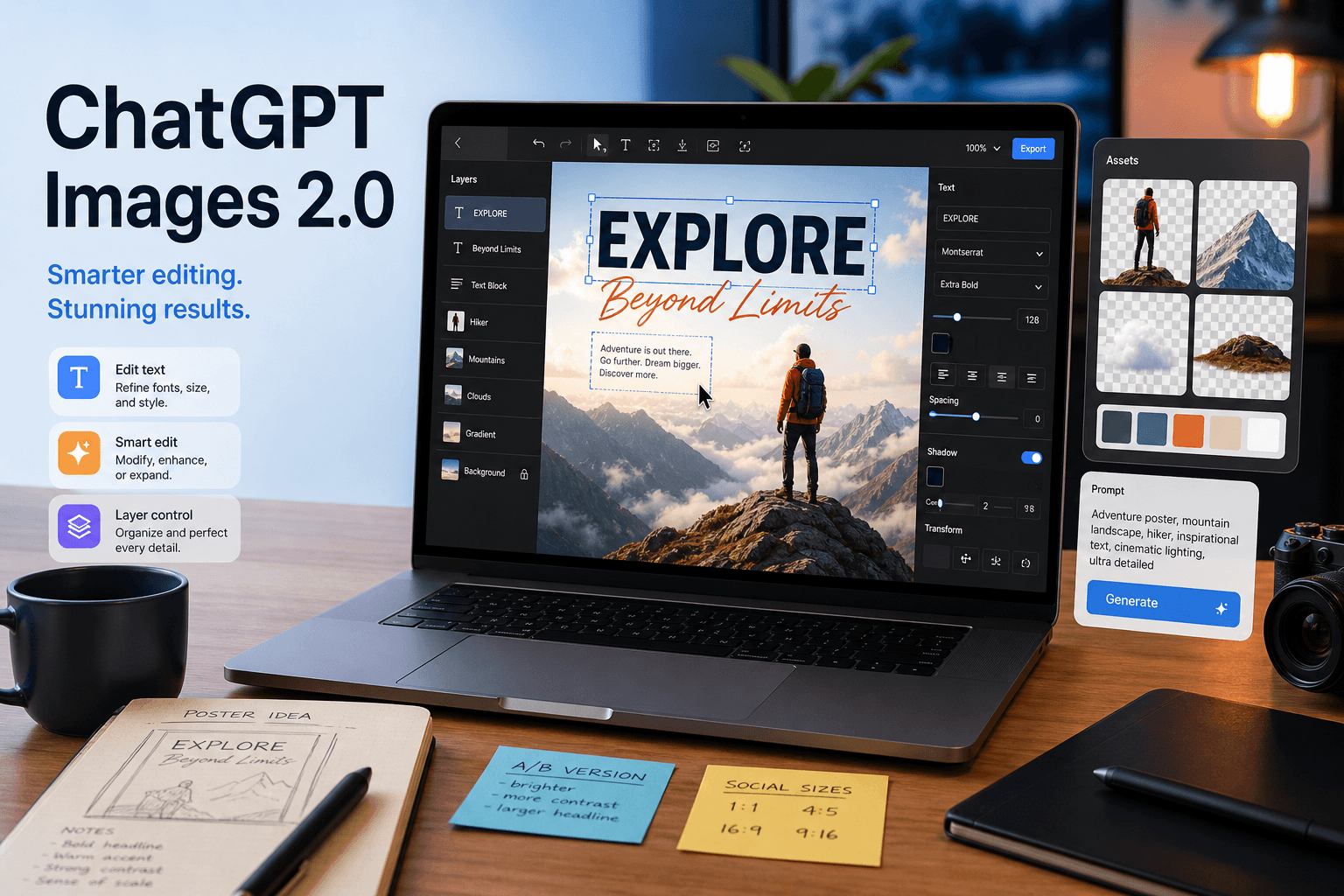
OpenAI’s ChatGPT Images 2.0, announced on April 21, 2026, is one of the more useful image updates we have seen in a while because it is not only about prettier pictures. The bigger change is practical control. OpenAI says the tool can better follow precise instructions, add text inside images, support transparent backgrounds, edit uploaded images, and work across aspect ratios. That sounds small on paper, but in daily work it matters a lot.
If you create blog graphics, product mockups, social posts, explainers, thumbnails, diagrams, or visual drafts for clients, the biggest headache is usually not “Can the model make art?” It is “Can it follow the brief?” That is where ChatGPT Images 2.0 becomes interesting.
This guide explains what actually changed, where the new image workflow is genuinely useful, how to prompt it better, and where you should still keep your expectations realistic.
Table of Contents
- What ChatGPT Images 2.0 is
- What changed from older image workflows
- How to use it step by step
- Best practical use cases
- Prompting tips that improve results
- Limits you should know before relying on it
- FAQ
What ChatGPT Images 2.0 Actually Is
ChatGPT Images 2.0 is OpenAI’s latest image generation experience inside ChatGPT. According to OpenAI’s product announcement and Help Center documentation, it can:
- generate new images from text prompts
- edit images you already created
- edit uploaded images
- follow more detailed text instructions
- generate images with transparent backgrounds
- work in different aspect ratios
- save generated outputs in the Images area for reuse
OpenAI also says the feature is available on all ChatGPT tiers, while “images with thinking” is available on Plus, Pro, and Business, with broader rollout planned.
That matters because the product is no longer only a separate art toy. It is becoming part of a general-purpose work surface inside ChatGPT.
What Changed From Earlier Image Workflows
The most useful improvement is not just visual quality. It is reliability in structured requests.
Earlier AI image tools often struggled when you asked for:
- readable text on posters or product labels
- layout-like compositions with several elements
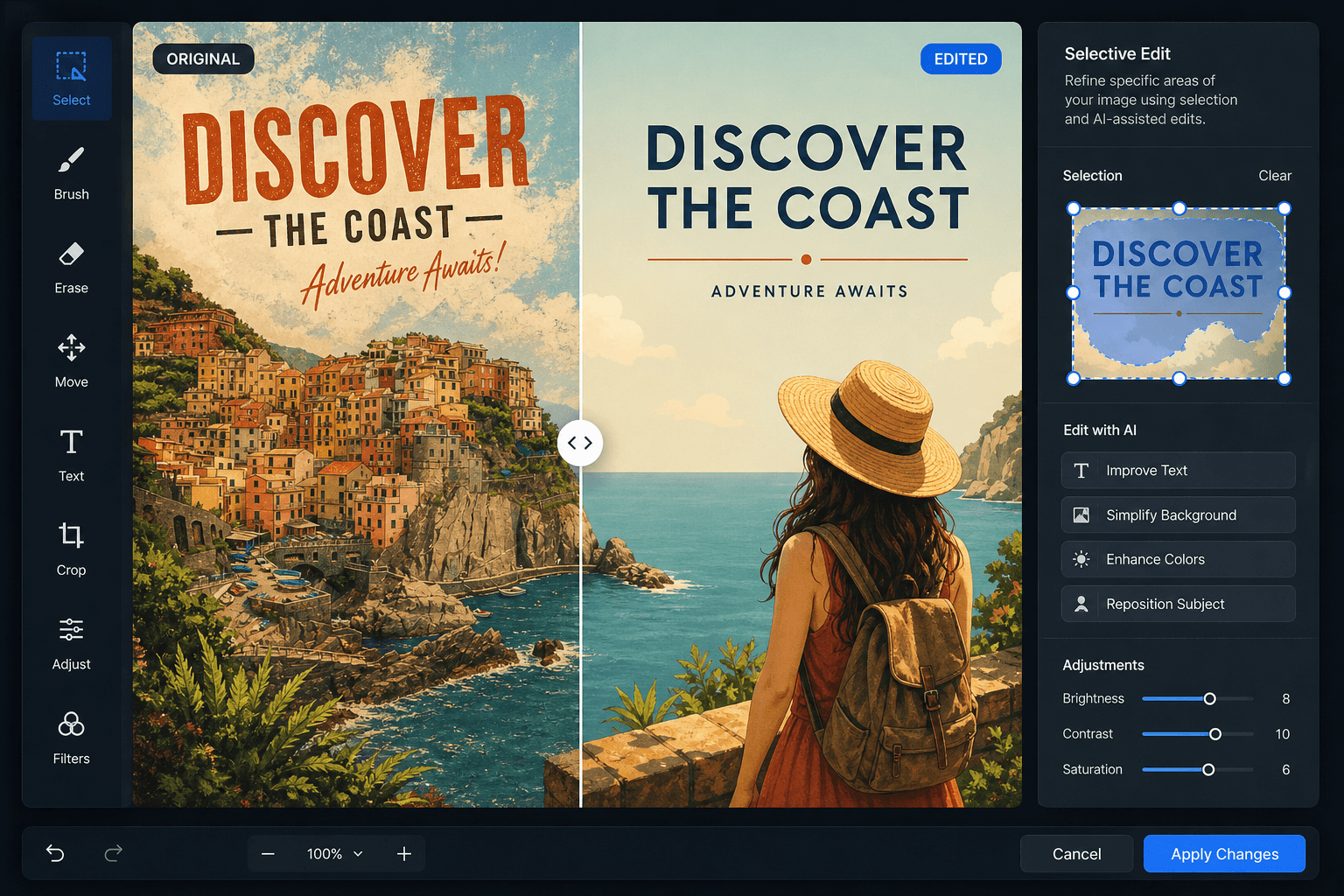
- accurate edits to one part of an existing image
- cleaner brand-style outputs
- multiple aspect ratios without rewriting the whole prompt
ChatGPT Images 2.0 looks designed to reduce that friction.
For regular users, the practical difference is simple: you can describe the job more like a real brief. Instead of prompting “make a stylish poster,” you can ask for a bold editorial layout, a specific headline, a transparent PNG-style object, or a revision to only one part of an uploaded image.
That makes it more useful for content teams, indie founders, social media managers, teachers, and bloggers who need assets fast but still want some control.
How To Use ChatGPT Images 2.0 Step by Step
1. Start with the job, not the style
The best prompts begin with the purpose:
- blog featured image
- YouTube thumbnail draft
- app onboarding illustration
- product mockup
- infographic header
- social media announcement card
When you begin with the job, the model makes better composition choices.
2. Describe the subject clearly
Be direct about the main object, action, and setting.
Bad example: “Make a cool AI image.”
Better example: “Create a blog featured image showing a creator at a laptop generating a polished marketing graphic with AI, with visible layers, text blocks, and a clean modern workspace.”
3. Add style and output constraints
Once the subject is clear, add:
- illustration, photo, editorial, product-shot, poster, manga, infographic, or cinematic style
- square, horizontal, or vertical format
- bright, muted, premium, playful, or minimal tone
- specific text if needed
- transparent background if you need a cut-out style asset
4. Use editing when generation is close but not perfect
This is where the new workflow becomes more useful than a one-shot generator. If the first result is 80 percent right, edit it instead of starting over.
For example:
- “Keep the same composition but replace the headline with ‘Launch Week Checklist’.”
- “Change only the background to a soft office setting.”
- “Remove the extra objects on the right.”
- “Keep the person and laptop, but make the image vertical for Instagram.”
5. Save versions you may reuse later
OpenAI says generated images are saved inside the Images section. That is handy for creators building repeated visual systems, because you can revisit earlier work rather than hunting through old chats.
Best Practical Use Cases Right Now
Blog graphics and article visuals
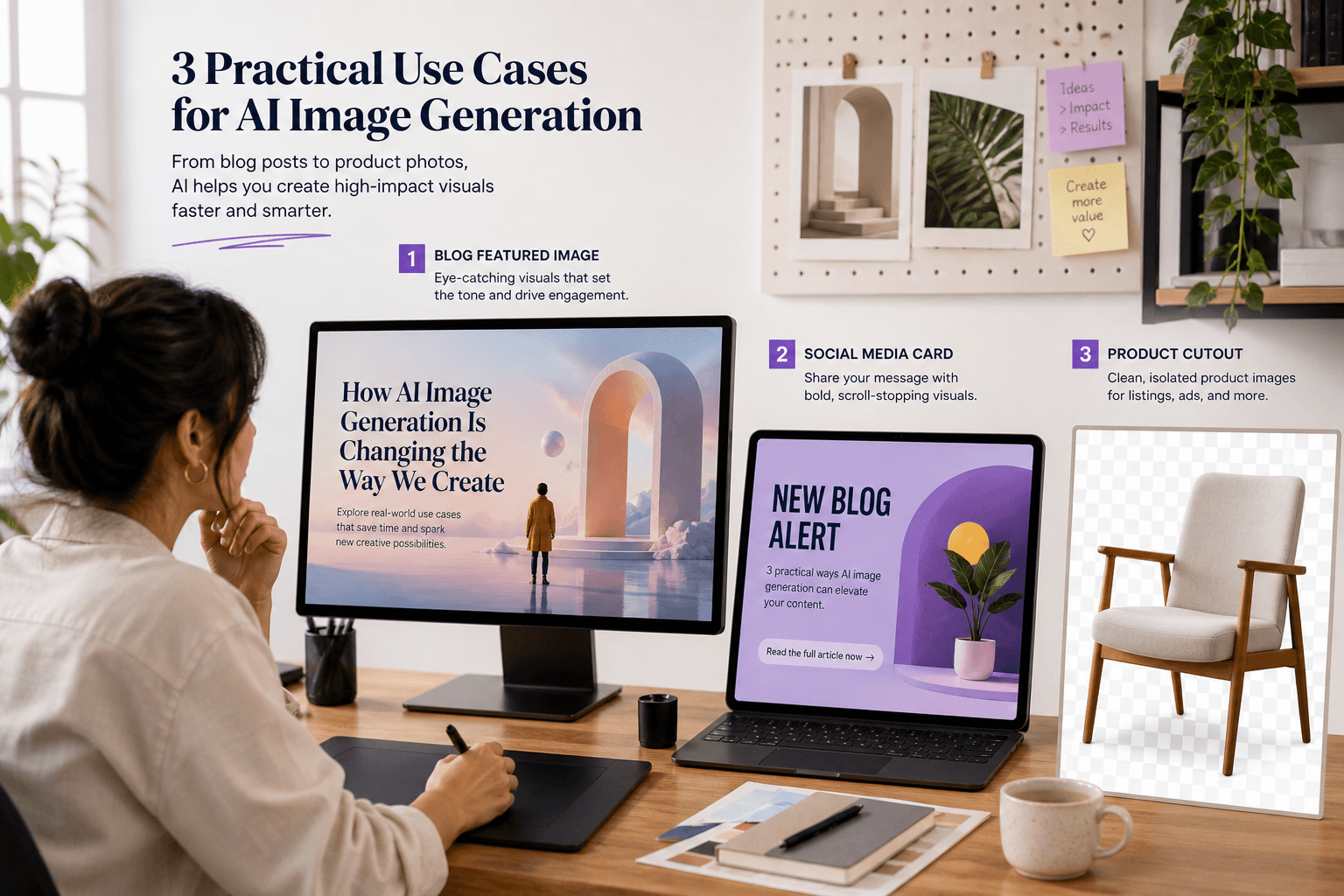
This may be the clearest win. A lot of website owners do not need museum-grade art. They need a relevant featured image that looks clean, timely, and specific to the article topic. ChatGPT Images 2.0 is much better suited to that job than vague abstract AI art.
For ToolMintX readers, this is especially relevant if you publish tutorials, tool comparisons, app explainers, or release coverage and want article visuals fast without defaulting to generic stock images.
Social media launch assets
If you need announcement cards, quote visuals, explainers, or carousel-style art direction, the stronger text handling and controlled edits matter more than pure artistic flair.
Transparent cut-outs and compositing
OpenAI’s documentation explicitly mentions transparent backgrounds. That is practical for creators who want stickers, icons, isolated product objects, or quick layered assets for banners and thumbnails.
Educational explainers
OpenAI’s own examples lean into infographic and educational layout work. That makes sense. When an image model becomes better at readable structure, it becomes more useful for quick explainers, posters, classroom visuals, and concept diagrams.
Image revision instead of total regeneration
This is quietly one of the biggest upgrades. A good image workflow is not about “type prompt, accept result, done.” Real work usually means revision. If you can tweak the useful parts instead of rebuilding from zero, you save time.
Prompting Tips That Usually Improve Results
Ask for one strong composition
If you ask for too many ideas at once, results become muddy. It is usually better to request one clear frame.
Specify what should stay unchanged during edits
Say things like:
- keep the same subject
- preserve the current color palette
- do not change the facial expression
- change only the headline text
That reduces drift.
Treat text like a design brief
If you need words inside the image, provide:
- exact headline
- preferred capitalization
- short supporting text
- tone such as bold, premium, playful, or editorial
Shorter text still tends to work better than long paragraphs.
Mention aspect ratio early
Do not leave format until the end if layout matters. A vertical Instagram visual and a wide blog header need different composition logic.
Use two-pass prompting
One useful workflow is:
- Generate the base image.
- Edit it for text, cropping, or cleaner details.
This often works better than trying to get every detail perfect in one prompt.
What ChatGPT Images 2.0 Still Does Not Magically Fix
Even with the upgrade, a few limits remain.
Precise edits can still spill over
OpenAI’s Help Center says highlighted edits are not always exact, and changes may extend beyond the selected area. So if you are editing a logo, face, or tightly controlled product shot, you should still expect some trial and error.
Long text is still risky
Short headlines are one thing. Dense charts, complex tables, or heavy paragraphs inside an image are another. For production work, real design software still wins when the text load gets high.
Brand consistency still needs human review
AI can get close to a look, but if a company has strict colors, typography, spacing, or packaging rules, you still need a human pass.
Speed depends on prompt complexity
OpenAI says generation can take up to two minutes depending on prompt complexity. That is fine for careful work, but not ideal if you need instant batch output at scale.
Practical Examples
Example 1: Blog featured image
Prompt: “Create a wide blog featured image for an article about ChatGPT Images 2.0. Show a creator at a desk refining an AI-generated poster on screen, with visible text blocks, image layers, and a clean modern studio feel. Editorial tech illustration, crisp lighting, blue and warm orange accents.”
Example 2: Transparent product cut-out
Prompt: “Create a transparent-background image of a minimalist desk microphone and compact camera arranged neatly for a creator toolkit graphic. Clean studio lighting, realistic product style, no shadow spill.”
Example 3: Revision pass
Prompt: “Keep the same composition and subject, but replace the title text with ‘AI Visual Workflow’, simplify the background, and make the layout suitable for a LinkedIn post.”
FAQ
Is ChatGPT Images 2.0 free to use?
OpenAI says ChatGPT Images 2.0 is available on all ChatGPT tiers, though some advanced image-plus-thinking workflows are limited to paid plans for now.
Can it edit uploaded images?
Yes. OpenAI’s Help Center says you can upload an existing image and describe the changes you want.
Can it make transparent background images?
Yes. OpenAI explicitly lists transparent background support in the ChatGPT Images documentation.
Is it good for posters and blog graphics?
Yes, especially for concept visuals, article headers, social graphics, and fast drafts. You should still review any output with important text or brand rules before publishing.
Is it better than a full design tool?
Not always. It is better seen as a fast visual ideation and asset-generation layer, not a complete replacement for every design workflow.
Conclusion
ChatGPT Images 2.0 matters because it moves AI image generation closer to real work. The value is not just that it can make attractive visuals. The value is that it is getting better at following instructions, revising earlier outputs, handling text more usefully, and fitting into everyday creator workflows.
If you publish content regularly, this is the kind of update worth testing immediately. It can speed up featured images, explainers, visual drafts, and lightweight marketing assets without forcing you into a complicated design stack every time. For ToolMintX readers, that is the real story: less prompt roulette, more practical output.